
Appearance
User Generation
User generation creates realistic WordPress user accounts for testing multi-author blogs, membership sites, editorial workflows, and any scenario where you need more than a single admin account. Unlike the auto-create authors option in post generation (which is limited to the "author" role), the dedicated user generator gives you full control over roles, counts, and the composition of your user base. Every generated user comes with a complete profile, safe credentials, and full History tracking for easy cleanup.
Safety Limits
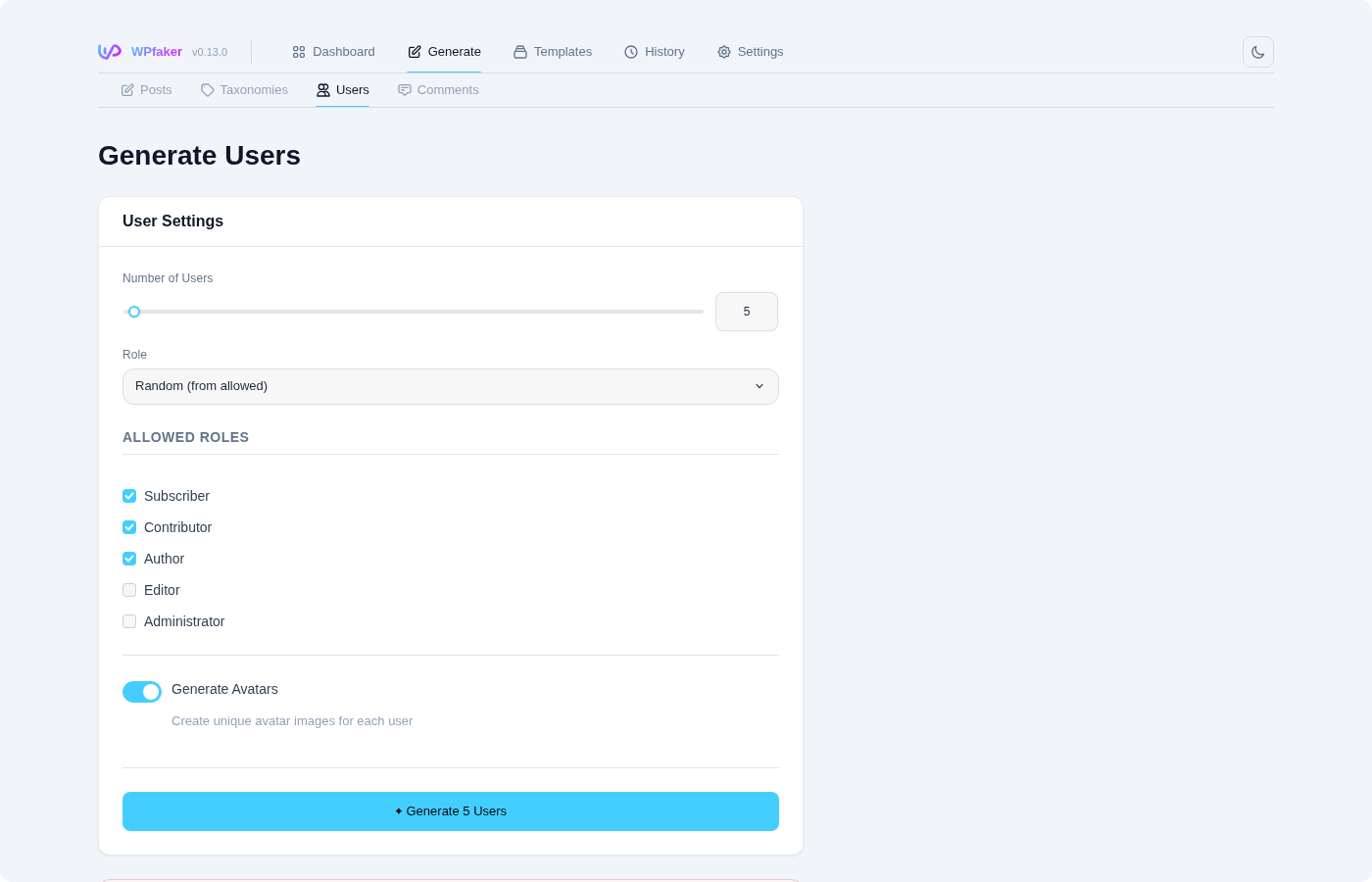
WPfaker allows up to 500 users per request. The slider ranges from 1 to 500. This keeps generation safe and prevents accidental mass creation of user accounts. If you need more test users, run multiple generation batches. The limit is intentionally conservative because user accounts carry more security implications — each one is a potential login to your WordPress site.
WARNING
All generated users receive safe @example.com email addresses and secure random passwords. They are designed for testing purposes only. Never generate users on a publicly accessible production site without understanding the security implications.
Number of Users
You can generate between 1 and your server's calculated maximum per batch, with a default of 5. The right number depends entirely on your testing needs. For basic author archive testing, 3 to 5 users is usually enough. For testing a membership directory page or a user listing plugin, you might want 20 to 50 users to see how your layout handles a realistic number of entries. For editorial workflow testing with multiple roles, a smaller batch of 5 to 10 users spread across different roles often provides the best coverage.
Role Selection
WPfaker offers two approaches to role assignment:
Specific Role assigns the same WordPress role to every user in the batch. This is the straightforward option when you know exactly what you need — for example, 10 authors for a multi-author blog, or 20 subscribers for membership testing. You select the role from a dropdown, and every generated user receives that role.
Random distributes users across multiple roles from a configurable "allowed roles" list. This produces a more realistic user base where different people have different permission levels, which is exactly what you need when testing role-based features like capability checks, admin menu visibility, or content access restrictions.
Allowed Roles
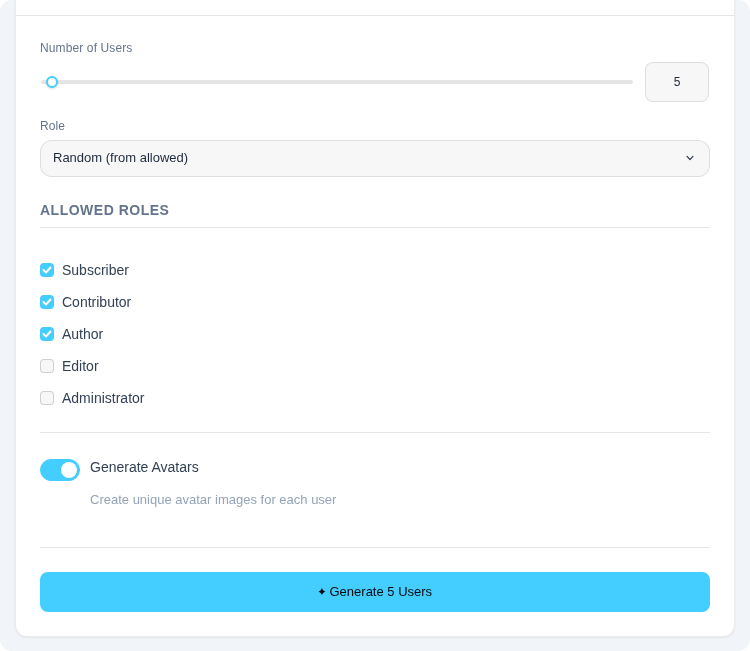
When using random role assignment, you control which roles are included in the random pool. By default, the following roles are enabled:
Subscriber is the most restricted role, limited to reading content and managing their own profile. Subscribers are the bread and butter of membership sites, comment systems, and gated content areas.
Contributor can write and edit their own posts but cannot publish them. This role is common in editorial workflows where content needs approval before going live.
Author can write, edit, and publish their own posts, plus upload media. Authors cannot modify other users' content. This is the standard role for blog contributors and content creators.
Editor has broad content management permissions: they can publish, edit, and delete any post (not just their own), manage categories and tags, and moderate comments. Editors are effectively content managers without access to site-wide settings.
Administrator has full access to everything. For safety, the Administrator role is excluded from the random pool by default and requires explicit selection with a clear warning.
DANGER
Including Administrator in the allowed roles list creates user accounts with full site access. Only include Administrator if you specifically need admin accounts for testing. Prefer creating admin accounts manually with known credentials rather than generating them with random passwords.
Generated User Data
Each user WPfaker creates comes with a complete WordPress profile. The display name is generated from a realistic first and last name combination that respects the current locale setting — so a German locale produces names like "Hans Mueller" while a Japanese locale produces names like "Tanaka Taro." The email address uses the @example.com domain, which is reserved by RFC 2606 specifically for documentation and testing purposes, ensuring that generated emails can never accidentally reach real mailboxes.
The username is automatically derived from the display name with a numeric suffix to guarantee uniqueness (for example, john.smith.42). The password is a secure random string that meets WordPress's strong password requirements. Each user also receives a generated biography paragraph, a nickname variant, and a placeholder website URL.
Because email addresses use the @example.com domain, generated users can have Gravatars linked if you have configured them, and the addresses are safe for any automated email testing — messages sent to these addresses simply go nowhere.
Profile Pictures
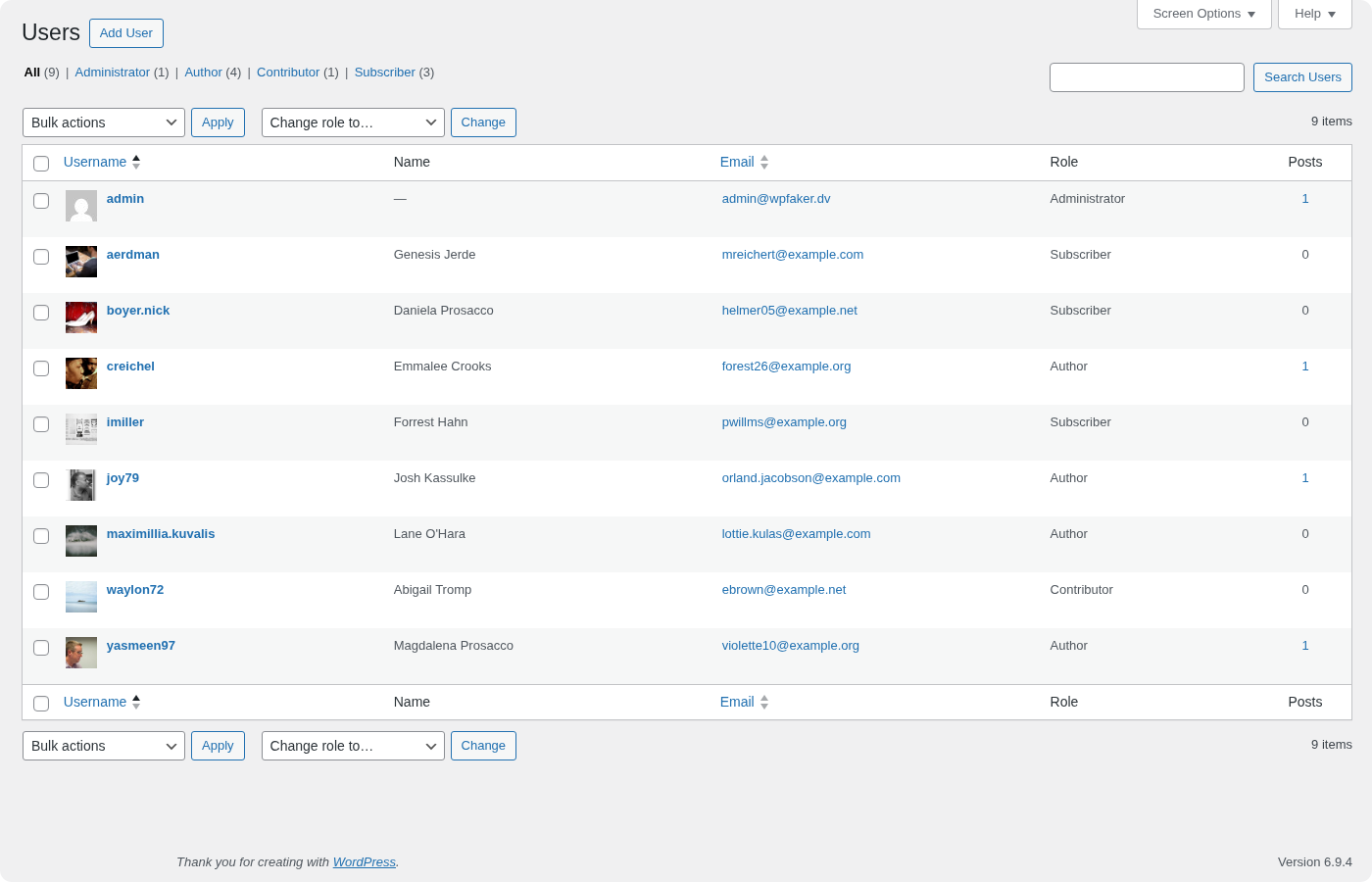
WPfaker can automatically download portrait photos and assign them as profile pictures to generated users. When Generate Profile Pictures is enabled (the default), WPfaker downloads 400x400 square portrait images from the configured image provider and stores each one as a WordPress media attachment with internal _wpfaker_avatar post meta for tracking. The images are sourced from the "portrait" category of whichever image provider you have configured, using the search query "portrait face headshot person." The result is a set of realistic headshots that replace the generic Gravatar placeholders across your entire site.
The avatar system uses a pool approach to balance download time against visual variety. WPfaker downloads a batch of up to 20 unique portrait images (the maximum pool size) and distributes them across generated users in a round-robin pattern. If you generate 30 users with a pool of 10 portraits, each portrait will be assigned to roughly 3 users. If you generate 5 users, only 5 portraits are downloaded. A 200ms delay between downloads prevents hitting provider rate limits. Each downloaded image is stored as a standard WordPress media attachment, and the assignment is tracked via _wpfaker_avatar_id user meta on each user account.
INFO
The pool reuse pattern is intentional. Downloading a unique portrait for every single user would be wasteful — it would take significantly longer, consume more media storage, and produce diminishing visual returns. A pool of 20 distinct faces provides more than enough variety to make your test site look realistic, and the round-robin distribution ensures no single portrait dominates.
How Avatars Are Served
WPfaker registers a WordPress pre_get_avatar_data filter that intercepts all avatar requests site-wide. This is the same hook WordPress itself uses to resolve Gravatar URLs, which means WPfaker's portraits appear everywhere avatars are displayed — the wp-admin user list, comment threads, author archive pages, post bylines, contributor widgets, and any theme or plugin that calls get_avatar(). You do not need to configure anything per-template or per-theme; the filter handles it globally.
The filter is context-aware and handles multiple input types that WordPress passes when resolving avatars. When it receives a WP_User object, it checks that user's meta for a _wpfaker_avatar_id value. When it receives a WP_Comment object, it first checks the comment's own meta, then falls back to user meta if the comment was left by a registered user. For a numeric ID, it performs a direct user meta lookup. For an email string — which is how many themes and plugins request avatars — it first attempts a user lookup by email, and if that fails, it runs a SQL join against the comment meta table to find an avatar associated with that email address through comments. When any of these lookups finds a matching avatar ID, the filter overrides the avatar URL with the WordPress attachment's thumbnail URL via wp_get_attachment_image_url(), seamlessly replacing whatever Gravatar or default avatar WordPress would have served.
This comprehensive handling means you never see a mismatch where a user has an avatar in one context but a generic placeholder in another. Whether WordPress is rendering the admin bar, a BuddyPress profile, a WooCommerce review, or a simple comment list, the same portrait photo appears consistently for each generated user.
Auto-Created Authors
When using post generation with the auto-create authors option enabled, newly created authors automatically receive profile pictures as well. The post generator's ensureAuthors() method triggers its own avatar pool download using the same image provider configured for that post generation request, keeping the portrait style consistent with any other images being generated. To avoid downloading portraits twice, the post generator passes a generate_avatars=false flag when it delegates to the user generator internally, and handles the avatar assignment itself. The end result is that every auto-created author displayed on your site has a realistic avatar — author archives, bylines, and contributor pages all look authentic without any additional configuration on your part.
Image Providers
The portrait images are sourced from the same provider you configure in your image settings. All providers use the search query "portrait face headshot person" to find portrait-style headshots:
- LoremFlickr (default) returns varied portrait photography from Flickr
- Unsplash returns high-quality editorial portrait photography
- Lorem Picsum returns random photographs from its curated collection
All providers return 400x400 square images suitable for avatar display. The provider choice affects the visual style of portraits but not how they are stored or served — the pool and filter mechanics work identically regardless of provider.
TIP
Profile picture downloads add approximately 200ms per image due to rate limiting, with a maximum pool of 20 images. For a full pool download, expect roughly 4 seconds of additional generation time. For smaller batches where fewer portraits are needed, the wait is proportionally shorter. The visual payoff is significant — generated users with real portrait photos make your test site dramatically more convincing than a grid of identical Gravatar mystery-person silhouettes.
Uniqueness Enforcement
WPfaker takes uniqueness seriously during user generation. Before creating each user, it checks that neither the username nor the email address already exists in the WordPress user table. If a collision is detected, WPfaker appends or increments a numeric suffix until it finds an available combination. This means you can safely run multiple generation batches without worrying about duplicate user errors, and the generated usernames and emails will never conflict with existing real accounts on your site.
Custom User Fields
If you have custom user meta fields defined through ACF (via a User field group) or another supported field plugin, WPfaker detects and populates them automatically during user generation. This works identically to custom field population for posts — WPfaker reads the registered field groups assigned to users, determines the appropriate data type for each field, and fills them with matching fake data.
Common examples include social media profile URLs, phone numbers, job titles, company names, and profile photos. If your ACF user field group contains these fields, every generated user will have them filled with plausible values, saving you the tedious work of manually populating user profiles for testing.
Language Support
User names are generated in the locale selected in your Language settings or overridden in the generation panel. The locale affects first names, last names, and biographical text. Here are a few examples of how locale impacts the generated data:
For en_US, you get names like "Sarah Johnson" and "Michael Williams." For de_DE, names like "Anna Schmidt" and "Thomas Wagner." For fr_FR, "Marie Dubois" and "Pierre Martin." For es_ES, "Maria Garcia" and "Carlos Rodriguez." For ja_JP, names in Japanese characters. For zh_CN, names in Chinese characters.
This locale awareness is essential when testing themes that display author names prominently — on author archive pages, bylines, comment threads, or team member sections. Different languages produce names of different lengths and character sets, which can reveal layout issues that would be invisible with English-only test data.
History Tracking
Every user created by WPfaker is logged in the History system with the user ID, role, username, and generation timestamp. This tracking enables several important workflows: you can review all generated users in one place, filter the history to see only user entries, and delete generated users individually or in bulk.
When deleting generated users, WPfaker removes the user account and all associated user meta. However, posts created by the deleted user are not deleted — WordPress handles this by either reassigning them to another user or leaving them as orphaned content, depending on your WordPress settings. If you want to clean up posts along with users, delete the posts first (via post generation cleanup or the History page) and then remove the users.
INFO
The currently logged-in user is never deleted, even if it appears in the WPfaker history. This safeguard prevents you from accidentally locking yourself out of the admin panel.
API Usage
You can generate users programmatically through the WPfaker REST API:
bash
curl -X POST "https://yoursite.com/wp-json/wpfaker/v1/generate/users" \
  -H "X-WP-Nonce: your-nonce" \
  -H "Content-Type: application/json" \
  -d '{
    "count": 10,
    "role": "random",
    "allowed_roles": ["subscriber", "contributor", "author"],
    "locale": "en_US"
  }'
To generate users with a specific role, replace "random" with the desired role slug (for example, "author" or "editor"). The allowed_roles parameter is only relevant when role is set to "random". See the Generation API reference for complete parameter documentation and response formats.
Danger Zone
The user generator includes the same Danger Zone pattern as post generation and taxonomy generation. When you enable Delete Existing Users before generating, all WPfaker-tracked users are permanently removed before the new batch is created. Only users in the WPfaker history are affected — manually-created accounts and the currently logged-in user are always safe.
DANGER
Deleting users is permanent. If the deleted users authored any posts, those posts will be orphaned or reassigned depending on your WordPress configuration. Plan your cleanup order carefully: delete posts first, then users.
Use Cases
Multi-author blog simulation is the most common use case. Generate 5 to 10 users with the Author role, then run post generation with auto-assign authors enabled. The result is a blog that looks like it has a real team of writers, with posts distributed naturally across different bylines. This is invaluable for testing author archive pages, author bio boxes, and contributor listing sections.
Editorial workflow testing requires users at multiple permission levels. Generate a batch with random roles including Contributors, Authors, and Editors, then create posts with the Pending status. You can then log in as different users to verify that the editorial review process works correctly — Contributors can submit but not publish, Editors can approve, and the approval notifications fire properly.
Membership site testing calls for a larger pool of Subscribers. Generate 20 to 50 Subscriber accounts to test member directories, profile pages, user search, and role-based content gating. Having a realistic number of users reveals performance and pagination issues that a handful of test accounts would miss.
Author archive testing is particularly sensitive to user count and diversity. Generate users across multiple locales to ensure your author archive template handles names of different lengths, character sets, and formats correctly. A template that looks perfect with "John Smith" might break with a longer German name or wrap awkwardly with Japanese characters.
Best Practices
Keep the Administrator role out of your random generation pool unless you have a specific, deliberate reason to include it. Every admin account is a full-access door to your WordPress installation, and randomly-generated admin accounts with unknown passwords create unnecessary risk. If you need admin accounts for testing, create them manually with known credentials or generate them one at a time with the specific role option.
Use the @example.com email domain to your advantage. Because all generated emails use this reserved domain, you can easily identify WPfaker-generated users in your WordPress user list by filtering or searching for "@example.com." This makes manual review and cleanup straightforward even outside of WPfaker's History interface.
Generate users before generating posts when you want diverse author attribution. The auto-create authors feature in post generation creates only Author-role users. If you want posts distributed across Editors and Contributors as well, create those users first via the user generator, and WPfaker will use them during post generation.
On staging or shared development environments, clean up generated users promptly after testing. Leaving dozens of test accounts in place creates clutter and can confuse other team members. The History page makes bulk deletion fast and targeted, so there is no reason to leave test users lingering.