
Appearance
Image Handling
When you generate fake posts for testing or demonstration purposes, placeholder text alone rarely paints the full picture. Real websites are visual — they rely on featured images, galleries, and media attachments to tell their stories. WPfaker bridges this gap by downloading actual images from external providers and importing them directly into your WordPress media library. Every generated post can have a real featured image attached, galleries can be populated with multiple photographs, and media-type custom fields receive proper attachment IDs that work seamlessly with your theme's image rendering functions.
This means that when you preview a generated post on the front end, you see a complete, realistic page — not a broken image placeholder or an empty thumbnail area. The images are real files stored in your wp-content/uploads directory, registered in the media library with titles, alt text, and captions, and tracked in WPfaker's History for easy cleanup when you are done testing.
Image Providers
WPfaker ships with four image providers, each suited to different testing scenarios. You can switch between providers at any time, and the choice affects only where images are sourced from — the download, import, and attachment process remains the same regardless of provider.
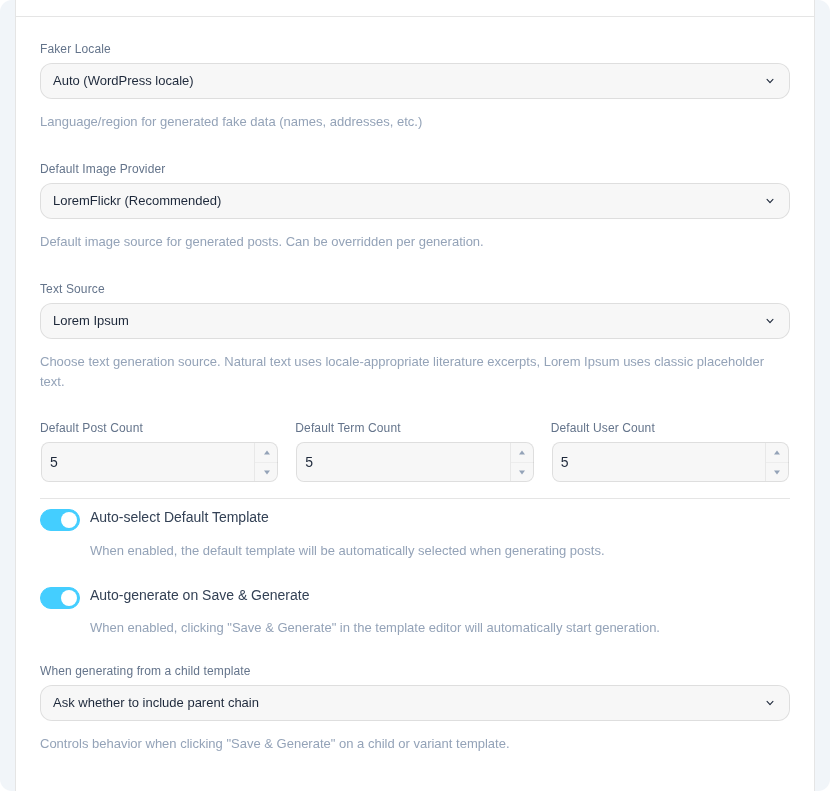
LoremFlickr
LoremFlickr is WPfaker's default image provider and the recommended choice for most use cases. It serves real photographs from Flickr filtered by category keyword, with no API key required. WPfaker supports ten image categories through LoremFlickr, and can auto-detect an appropriate category based on the post type name. For example, generating posts for a recipe post type may automatically pull food-related images if the auto-detect feature is active. LoremFlickr is fast, reliable, and produces varied results across generation runs.
Unsplash
Unsplash provides access to a vast library of high-quality photographs contributed by professional and amateur photographers worldwide. WPfaker accesses Unsplash through its own API proxy, which means you do not need to create an Unsplash developer account or manage API keys yourself. The proxy handles authentication and rate limiting transparently. Unsplash images tend to be stunning, magazine-quality photographs, making this provider the best choice when you need generated content to look particularly polished — for example, when preparing a client demo or a portfolio showcase. Category filtering is supported, allowing you to request images that match the thematic context of your content. Unsplash attribution is automatically added to image captions to comply with their license terms.
Lorem Picsum
Lorem Picsum serves high-quality random photographs from a curated collection of professional photography hosted at picsum.photos. No API key is required, and the service is fast and reliable with high uptime. Lorem Picsum supports URL-based sizing, which means WPfaker requests images at exactly the dimensions you configure — there is no resizing or cropping after download. Each image request uses a unique seed value, so repeated generations within the same batch always produce different images, while the same seed deterministically returns the same image if you need reproducibility.
Placeholder.com
Placeholder.com generates simple solid-color placeholder images with optional text overlays. Unlike the other three providers, it does not serve photographs at all — it produces flat-colored rectangles at whatever dimensions you specify. This makes it the fastest provider by a significant margin because there are no large image files to download and no external API calls to authenticate. Placeholder.com is the ideal choice when you are testing layout, grid alignment, or responsive behavior and the actual image content is irrelevant.
Download vs. Reuse
WPfaker offers two modes for handling images during generation. The Download New Images mode fetches fresh images from your selected provider for every generated post. This produces the most visually varied results but takes longer due to the external downloads. The Use Existing Media mode skips external downloads entirely and instead randomly assigns images that already exist in your WordPress media library to the generated posts. This is significantly faster and uses no bandwidth.
The reuse mode is particularly useful when you have already generated a batch of posts with downloaded images and now want to create additional posts quickly. Rather than downloading more images, WPfaker picks from the images already in your library, giving new posts realistic featured images without the overhead of external requests.
TIP
For the fastest possible generation, combine the "Use Existing Media" mode with the Placeholder.com provider for your initial batch. Generate a small set of posts with Placeholder.com images first, then switch to reuse mode for subsequent batches.
Image Categories
Providers that support category filtering — LoremFlickr and Unsplash — allow you to constrain the types of images that are downloaded. Available categories include nature, business, food, architecture, technology, people, animals, travel, and more, with ten categories available. WPfaker provides a category dropdown in the generation interface when a category-capable provider is selected.
In addition to manual category selection, WPfaker offers context-aware auto-detection that examines the post type name and attempts to match it to a relevant category. If you are generating posts for a restaurant post type, WPfaker may automatically select food-related images. For a property post type, it may select architecture or interior images. This auto-detection is a best-effort heuristic and works well for descriptively named post types. You can always override it by selecting a specific category manually.
Aspect Ratios
WPfaker provides eight preset aspect ratios to ensure that downloaded images match the proportions your theme expects. The available presets are:
- 1:1 — Square format, commonly used for profile pictures, social media thumbnails, and grid layouts.
- 4:3 — Classic format with a slightly wider-than-tall proportion, popular in traditional photography and presentation slides.
- 3:2 — The default and most common photography standard, matching the proportions of 35mm film and most digital cameras. This is WPfaker's default aspect ratio.
- 16:9 — Widescreen format used by most monitors, televisions, and video platforms. Ideal for hero images and full-width banners.
- 21:9 — Ultra-wide cinematic format, suited for panoramic headers and immersive banner sections.
- 2:3 — Portrait orientation, taller than wide, commonly used for book covers, phone screenshots, and vertical cards.
- 3:4 — Portrait classic, a taller-than-wide ratio often used for traditional portrait photography and product shots.
- 9:16 — Vertical mobile format, matching the proportions of smartphone screens and social media stories.
The aspect ratio determines the relationship between width and height. WPfaker calculates the actual pixel dimensions by applying the ratio to the configured width value.
Image Sizing
By default, WPfaker downloads images at a fixed width of 1200 pixels, with the height calculated automatically from the selected aspect ratio. You can adjust the width to any value between 200 and 3000 pixels to match your theme's featured image requirements. If your theme displays featured images at 800 pixels wide, setting the width to 800 avoids unnecessary large downloads. If your theme has a retina-ready full-width header, a width of 2400 pixels ensures crisp display on high-density screens.
WPfaker also offers a random size mode where you specify a minimum and maximum width (for example, 800 to 1600 pixels). In this mode, each generated post receives an image at a randomly selected width within that range, producing varied image dimensions across the batch. This is useful when testing responsive layouts, lazy-loading behavior, or WordPress's srcset generation, where varied source image sizes create more realistic conditions.
INFO
Downloaded images are stored at their requested dimensions. WordPress may generate additional thumbnail sizes based on your theme and Settings > Media configuration, just as it would for any manually uploaded image.
Gallery Support
For field plugins that support gallery fields — most notably ACF Pro's gallery field and JetEngine's gallery field — WPfaker downloads multiple images and assigns them as a collection. The number of images per gallery varies based on the active Content Variation profile. Under the "Complete" profile, galleries receive the maximum configured number of images. Under varied profiles, some galleries may receive fewer images, and some posts may have their gallery fields left empty entirely, reflecting the natural inconsistency of real-world content.
Each gallery image is individually downloaded from the configured provider, imported into the media library as a separate attachment, and its ID is stored in the gallery field's array. This means gallery images appear in Media > Library as individual items and can be reused, edited, or deleted independently of the gallery they belong to.
Media Library Integration
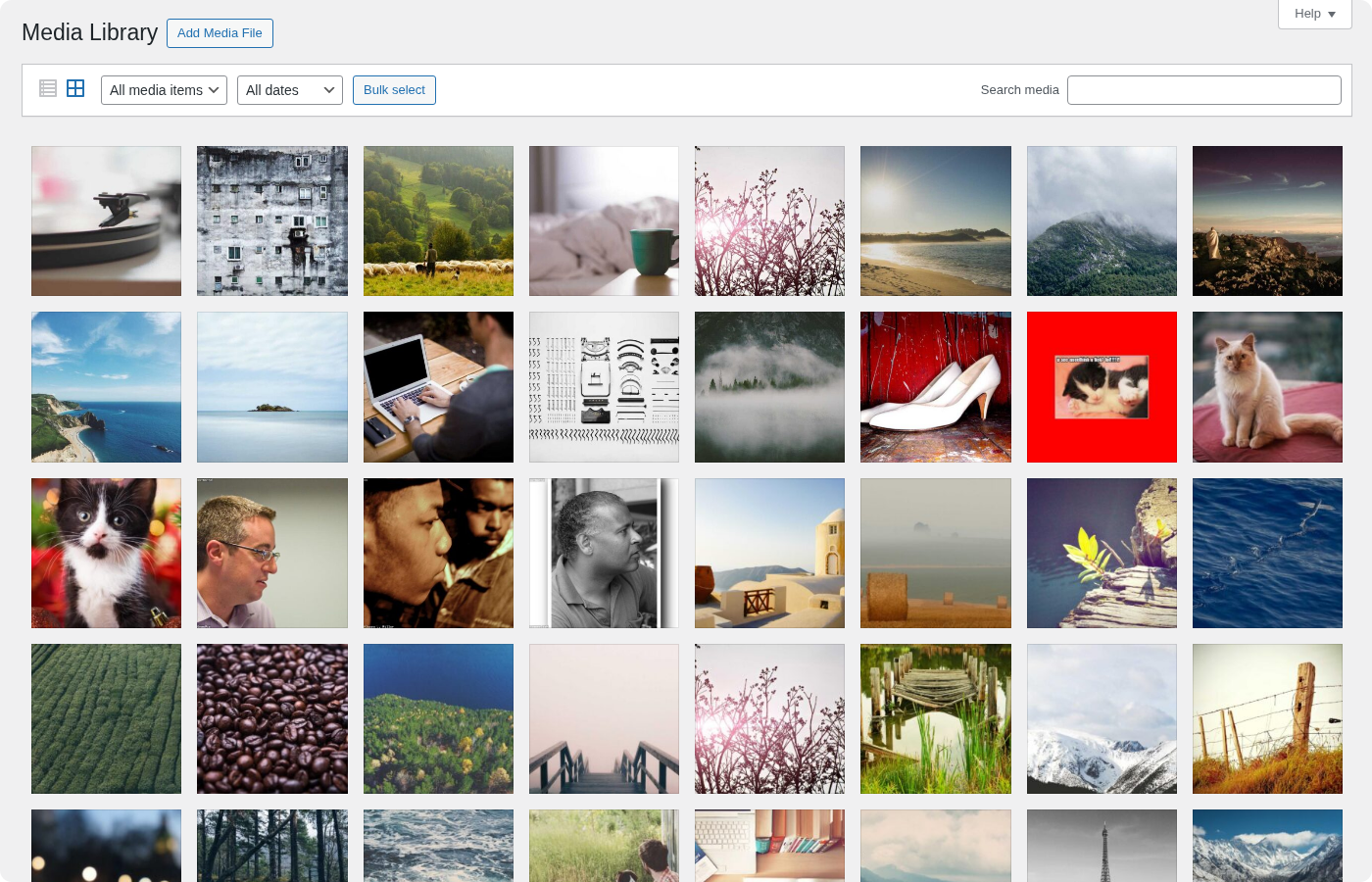
Every image downloaded by WPfaker is fully integrated into WordPress's media library. The file is stored in the standard wp-content/uploads directory structure, organized by year and month just like any manually uploaded image. An attachment post is created in the database with a descriptive title derived from the image source, alt text for accessibility, and a caption. The image appears in Media > Library alongside your regular uploads and can be viewed, edited, cropped, or deleted through the standard WordPress media interface.
WPfaker also marks every downloaded image with internal metadata (_wpfaker_generated) so that it can be identified and cleaned up later. This metadata is invisible to regular WordPress usage but allows WPfaker's History system to track which media files were generated and which were uploaded manually.
Logo Generation
When WPfaker encounters an image field with a name that suggests a logo — such as company_logo, brand_icon, site_logo, or partner_logo — it automatically switches from standard photograph providers to a dedicated logo source. Instead of downloading a random photograph, WPfaker pulls a company-style logo from a curated pool of 90 SVG and 71 PNG logos hosted on remote object storage.
Logo selection is deterministic. WPfaker uses the field's associated company name as a seed value, hashing it to select a consistent logo number. The same company name always produces the same logo, which creates realistic consistency when generating multiple posts for the same brand.
The service tries SVG format first for crisp, resolution-independent logos. If the SVG download fails, it falls back to PNG. If the remote download fails entirely, WPfaker uses bundled SVG logos shipped with the plugin as a final fallback. Every downloaded logo is imported into the WordPress media library as a standard attachment, marked with _wpfaker_generated metadata for tracking and cleanup.
TIP
Logo detection is automatic. If your image field is named logo, company_logo, brand_image, or similar, WPfaker uses logo generation instead of photographs. No configuration is needed.
Cleanup
When you delete generated posts through WPfaker's History page or use the "Delete and Regenerate" feature, associated media files can optionally be removed from the media library as well. This behavior is controlled by the "Delete Related Media" toggle. When enabled, deleting a generated post also deletes its featured image attachment and any images in its gallery fields, freeing disk space and keeping your media library clean. When disabled, the images remain in the media library even after the post is deleted, which can be useful if you want to reuse them for future generations.
WARNING
The "Delete Related Media" option permanently removes image files from your server. If you have manually used a WPfaker-generated image in another context — for example, inserting it into a page's content or using it as a site logo — deleting the generated post will also remove that image. Exercise caution when enabling this option on sites where generated media has been repurposed.
Performance Considerations
Image downloads are the slowest part of any generation batch because each image requires an HTTP request to an external server, a file download, and an import into the media library. The total time depends on the number of posts, the image provider's response speed, and the configured image dimensions (larger images take longer to download).
For batches of one to ten posts, image downloads typically complete within thirty seconds. For ten to twenty-five posts, expect thirty to sixty seconds. Larger batches of twenty-five to fifty posts may take one to three minutes, and batches above fifty posts with images can take three to five minutes or more. These times assume the default 1200-pixel width.
To optimize generation speed, consider reducing image dimensions if your theme does not require large images. Switch to Placeholder.com when you are testing functionality rather than visual design. Use the "Existing Media" reuse mode after your first batch to eliminate downloads entirely. Generate in smaller batches to avoid PHP execution timeouts, especially on shared hosting environments where the default timeout may be as low as thirty seconds.
TIP
If you encounter timeout errors during generation with images, check your PHP max_execution_time setting. A value of 300 seconds (five minutes) is recommended for batches with image downloads. Your hosting provider's documentation will explain how to adjust this value.