
Appearance
AI Field Detection
WPfaker includes a sophisticated two-tier system for determining what kind of fake data to put into each custom field. The first tier is a built-in pattern matcher that recognizes over 780 common field name patterns across 160 detection types. The second tier is an optional AI-powered analysis that steps in when pattern matching alone cannot determine the correct data type. This page explains how AI field detection works, how to set it up, and how to manage it effectively.
How Field Detection Works
When WPfaker encounters a custom field during post generation, it needs to determine what kind of data belongs there. A field named phone_number should receive a formatted phone number, not a random paragraph of lorem ipsum. A field named iban should get a valid IBAN string, not a person's name.
WPfaker's built-in pattern matcher handles this for the most common cases. It maintains a library of over 780 patterns across 160 detection types that map field name fragments to specific faker methods. When it sees a field containing "phone", "email", "zip", "iban", "first_name", "street", or similar recognizable strings, it immediately knows the correct data type to generate. This pattern matching works across nine languages — English, German, French, Spanish, Italian, Dutch, Portuguese, Polish, and Russian — recognizing field names like vorname (first name), postleitzahl (postal code), and strasse (street) alongside their English equivalents.
However, pattern matching has its limits. Some fields use unconventional naming, domain-specific terminology, or abbreviated labels that do not contain recognizable keywords. A field named primary_residence should receive an address, but the pattern matcher has no built-in rule for that compound term. Similarly, customer_tax_id should get a tax identification number, and emergency_contact should receive a phone number, but these names do not match any simple pattern.
This is where AI field detection fills the gap. When enabled, WPfaker sends the field metadata to an AI language model that understands natural language context. The AI analyzes the field name, label, type, and any available options, then returns a recommended faker method and configuration. The result is cached so the AI is only consulted once per unique field structure.
INFO
AI detection is entirely optional. WPfaker works perfectly well with pattern matching alone for the vast majority of field configurations. AI detection is a supplementary feature for sites with custom post types that use unusual or domain-specific field naming conventions.
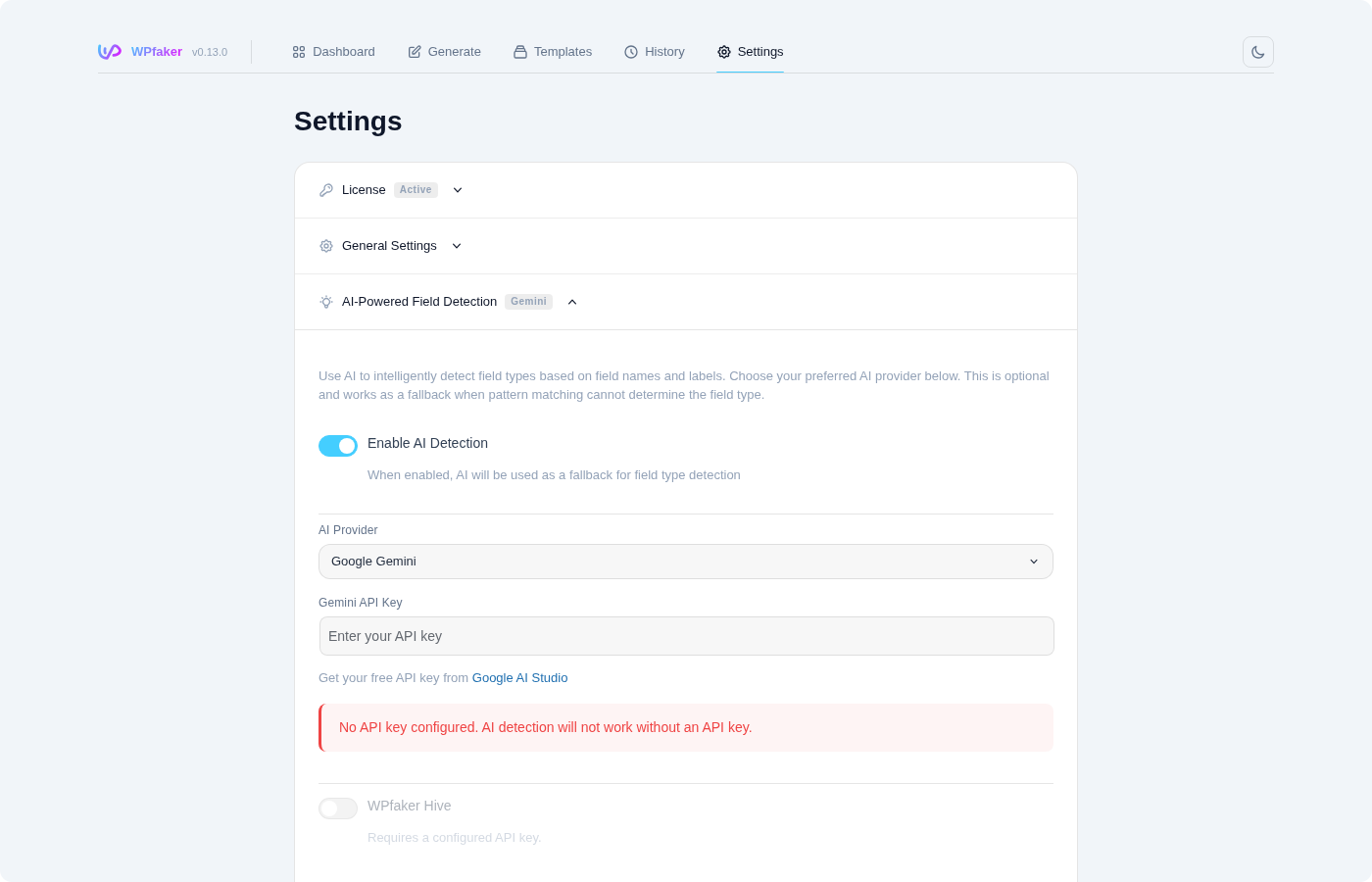
Supported AI Providers
WPfaker supports three AI providers, each offering different strengths in terms of speed, accuracy, and cost.
Google Gemini
Google Gemini is the default and recommended provider. WPfaker uses the Gemini 2.5 Flash model, which is optimized for fast responses and low cost. It is well-suited for the kind of structured analysis that field detection requires: examining a short list of field names and labels and returning categorized results. Google offers a generous free tier that includes 60 requests per minute and 1 million tokens per month, which is far more than WPfaker will ever consume. You can get a free API key at Google AI Studio.
Anthropic Claude
Anthropic's Claude models provide excellent contextual understanding, particularly for nuanced or ambiguous field names. Claude tends to be more conservative in its suggestions, preferring to indicate uncertainty rather than making incorrect guesses. This makes it a good choice if you prefer precision over coverage. You can obtain an API key from Anthropic's console.
OpenAI GPT
OpenAI's GPT models are widely used and well-understood. They provide solid field detection with broad language coverage. If you already have an OpenAI API key from other projects, using it with WPfaker requires no additional setup. You can manage your API keys at OpenAI's platform.
TIP
For most users, Google Gemini is the best starting point. Its free tier is the most generous, and Gemini 2.5 Flash offers an excellent balance of speed and accuracy for this type of task. Only switch to Claude or GPT if you have a specific reason, such as an existing API key or a preference for a particular provider's response style.
Custom AI Providers
Want to use a different AI service? You can register custom AI providers through the addon system. See the Addon Development Guide for details.
Setting Up AI Detection
Step 1: Enable AI Detection
Navigate to WPfaker > Settings and scroll to the AI-Powered Field Detection section. Toggle Enable AI Detection to the on position. This reveals the provider selection and API key fields.
Step 2: Select a Provider and Enter Your API Key
Choose your preferred AI provider from the dropdown. Then paste your API key into the corresponding field. Each provider has its own key format, and WPfaker validates the key format before saving.
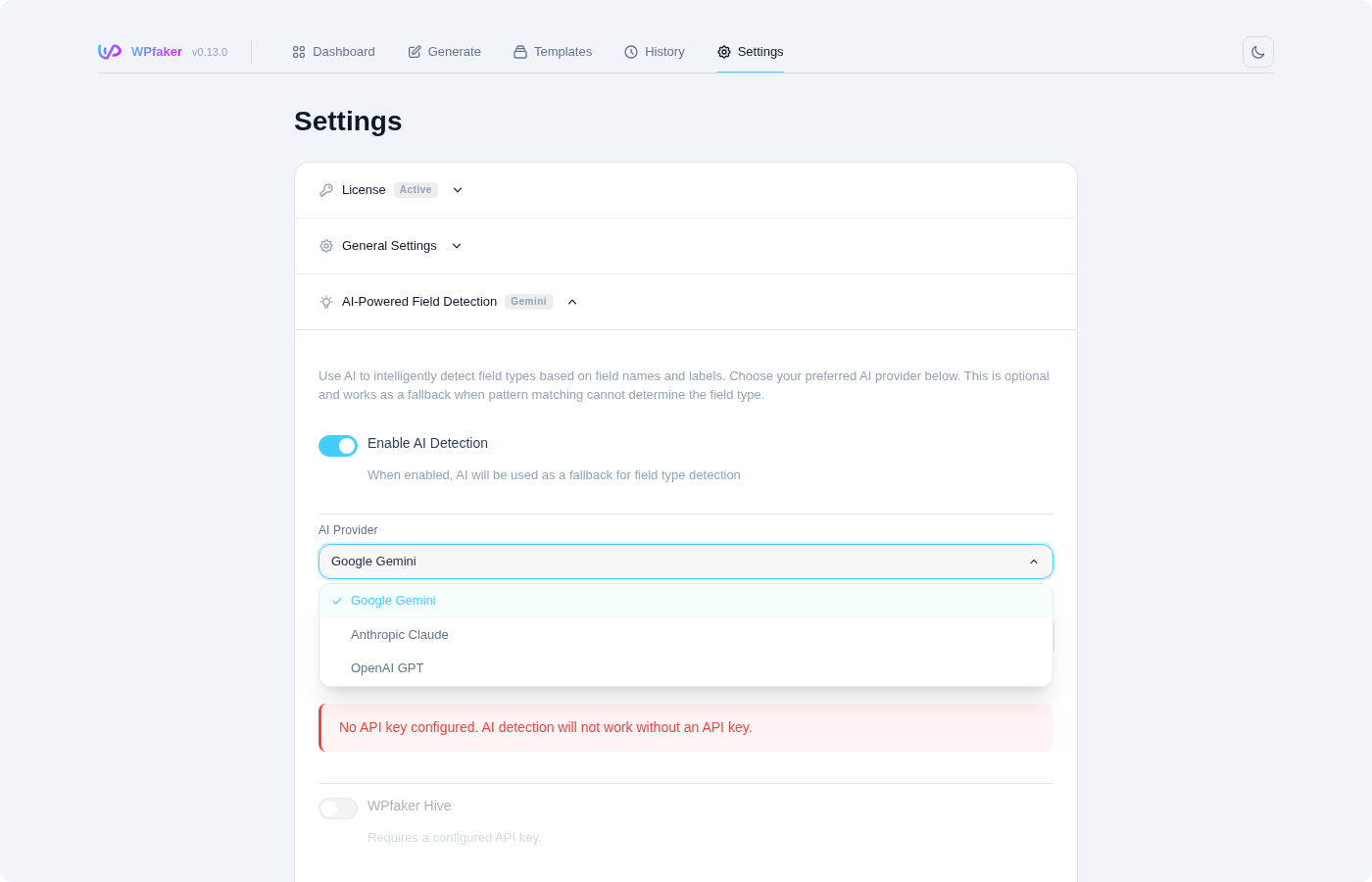
If you do not have an API key yet, follow the links in the Supported AI Providers section above to create a free account and generate one. The process typically takes less than two minutes.
Step 3: Test the Connection
After saving your settings with the Save AI Settings button, click the Test Connection button. WPfaker sends a small test request to the selected AI provider to verify that your API key is valid, the service is reachable, and responses are being returned correctly. A success message confirms everything is working, while an error message provides specific details about what went wrong.
WARNING
Your API key is stored in the WordPress database and transmitted to the selected AI provider when field detection occurs. No actual content or user data is ever sent to the AI. Only field metadata (field names, labels, types, and options) is transmitted for analysis.
How AI Detection Works in Practice
When you generate posts for a custom post type, WPfaker processes each registered custom field through its detection pipeline. The process begins with the pattern matcher examining every field. For fields that match a known pattern, the detection is instant and no AI call is needed.
For any remaining unrecognized fields, WPfaker batches them into a single request to the configured AI provider. The request includes the field name, the field label (if available from ACF, JetEngine, or similar field plugins), the field type (text, number, select, etc.), and any predefined options or choices. The AI provider analyzes this metadata and returns a suggested faker method for each field, along with a confidence score.
WPfaker then caches the entire result set. The cache is keyed by post type and includes a hash of the field structure. This means the AI is consulted only once per post type, and subsequent generation runs for the same post type reuse the cached results without making any additional API calls.
The cache expires after 24 hours by default. If you modify your field structure (adding, removing, or renaming fields), the cache is automatically invalidated because the field structure hash changes. This ensures the AI always works with up-to-date field metadata.
Cache Management
The AI cache is designed to minimize API calls while keeping detection results fresh. You can view and manage the cache from the AI Detection section in Settings.
The cache display shows you which post types have cached detection results and when those results were last updated. You can clear the cache for a specific post type if you want to force a re-analysis of that type's fields without affecting other cached results. You can also clear all cached results at once if you want a completely fresh start.
There are a few situations where you might want to clear the cache manually. If you have renamed custom fields or changed their labels, clearing the cache ensures the AI re-analyzes them with the updated metadata. If you switched AI providers, clearing the cache lets the new provider generate its own suggestions. And if detection results seem inaccurate for a particular field, clearing and re-running can sometimes produce better results, especially if the AI provider has been updated.
INFO
The cache is stored in a dedicated database table (wp_wpfaker_field_detections) with columns for post type, field name, label, plugin type, detected content type, detection source, confidence, and faker config. It survives page reloads and server restarts. Clearing the cache has no effect on previously generated content — it only affects future generation runs.
Token Usage & Cost
AI field detection uses small, structured requests — not long-form conversations. Each API call sends field metadata (names, labels, types) and receives a compact JSON response. This section breaks down the exact token consumption so you can estimate costs, especially when using providers with free-tier quotas.
What Counts as a Token
A token is roughly 4 characters of English text or one common word. API providers charge based on the total number of input tokens (what WPfaker sends) and output tokens (what the AI returns). Input tokens are cheaper than output tokens across all providers.
Token Usage by Operation
WPfaker makes up to three types of AI calls per custom post type. The table below shows approximate token counts for each.
| Operation | When It Runs | Input Tokens | Output Tokens (max) | Typical Total |
|---|---|---|---|---|
| Field detection (batch of 5 fields) | First generation for a CPT | ~2,700–3,000 | up to 2,048 | ~4,000–5,000 |
| Field config detection (batch of 5 fields) | First generation for a CPT | ~3,000–3,500 | up to 4,096 | ~5,000–7,500 |
| Title templates | First generation for a CPT | ~2,000–2,500 | up to 4,096 | ~4,000–6,600 |
| CPT context | First generation for a CPT | ~3,500–4,500 | up to 4,096 | ~5,500–8,600 |
| Connection test | When you click "Test Connection" | ~30 | ~50 | ~80 |
Field detection identifies the correct faker method for each unrecognized field (e.g., primary_residence → address). Field config detection determines additional parameters like value ranges, word counts, or date formats. Title templates generates locale-aware post title patterns for the CPT. CPT context builds a semantic description of the post type that improves field detection accuracy.
INFO
The "Output Tokens (max)" column shows the configured maximum. Actual output is usually 30–60% of the maximum because responses are compact JSON, not prose. A field detection response for 10 fields typically uses ~800–1,200 output tokens.
Typical Session
A first-time generation run for one custom post type triggers up to 3 API calls (field detection + title templates + CPT context). For a post type with 15 custom fields where 10 are unrecognized by the pattern matcher, the total token usage looks like this:
| Call | Input | Output (typical) | Total |
|---|---|---|---|
| Field detection (10 fields) | ~4,500 | ~1,500 | ~6,000 |
| Title templates | ~2,200 | ~2,000 | ~4,200 |
| CPT context | ~4,000 | ~2,500 | ~6,500 |
| Session total | ~10,700 | ~6,000 | ~16,700 |
Every subsequent generation for the same post type within the next 24 hours uses cached results and makes zero API calls — zero tokens consumed.
Google Gemini Free Tier
Google Gemini's free tier is the most generous option and the reason it is the recommended provider.
| Gemini Free Tier Limit | WPfaker Usage |
|---|---|
| 60 requests per minute | WPfaker makes 1–3 requests per CPT |
| 1,000,000 tokens per month | ~17,000 tokens per CPT (first run only) |
With ~17,000 tokens per CPT, you can analyze approximately 58 different post types per month before reaching the 1 million token limit — and that assumes every CPT is analyzed fresh without any caching benefit. In practice, you will regenerate the same CPTs multiple times, which costs nothing after the first run. A realistic development workflow with 5–10 custom post types uses less than 3% of the monthly free quota.
TIP
The Gemini free tier resets monthly. Even during intensive development phases with frequent field structure changes (which invalidate the cache), you are unlikely to exceed the limit unless you have more than 50 post types with constantly changing field structures.
Paid Provider Costs
For OpenAI and Anthropic, WPfaker uses cost-efficient models (GPT-4o-mini and Claude Sonnet). Pricing varies, but the small request sizes keep costs minimal.
| Provider | Model | Approximate Cost per CPT |
|---|---|---|
| Google Gemini | Gemini 2.5 Flash | Free (within quota) |
| OpenAI | GPT-4o-mini | ~$0.002–$0.005 |
| Anthropic | Claude Sonnet | ~$0.005–$0.015 |
These are per-CPT costs for the initial analysis. Cached runs cost nothing. A site with 10 custom post types costs roughly $0.02–$0.15 total for the first analysis pass with a paid provider, then nothing for the next 24 hours.
What Drives Token Usage Up
Three factors affect total token consumption:
Number of unrecognized fields. The pattern matcher handles 780+ common field names across 160 detection types at zero cost. Only fields it cannot match are sent to the AI. Post types with standard naming (e.g.,
first_name,email,phone) may need no AI calls at all.Frequency of field structure changes. Renaming fields, adding new ones, or removing existing ones invalidates the cache and triggers a fresh AI analysis. During active development, this might happen several times a day. Once your field structure stabilizes, the cache handles everything.
Number of distinct post types. Each post type gets its own cached analysis. A site with 3 post types uses ~50,000 tokens total on first analysis. A site with 20 post types uses ~340,000 tokens. Both are well within Gemini's free tier.
Caching Impact
WPfaker's caching strategy is the primary cost control mechanism. Results are stored in the wp_wpfaker_field_detections database table with the following TTLs:
| Cache Type | TTL | Invalidation |
|---|---|---|
| Field detection results | 24 hours | Field structure changes (automatic) |
| Title templates | 24 hours | Locale or CPT changes |
| CPT context | 24 hours | CPT slug or locale changes |
Once cached, a post type can be regenerated hundreds of times — different post counts, different variation profiles, different image settings — without a single additional AI call. The cache only expires after 24 hours or when the underlying field structure changes.
INFO
You can view and manage cached results in WPfaker > Settings under the AI Detection section. Clearing the cache for a specific post type forces a fresh analysis on the next generation run. This consumes tokens but ensures the AI works with the latest field metadata.
Fallback Behavior
If the AI provider is temporarily unavailable, returns an error, or takes too long to respond, WPfaker falls back gracefully to its pattern-based detection. Fields that the pattern matcher can handle continue to receive appropriate data. Fields that neither the pattern matcher nor the AI could identify receive sensible generic data based on their field type: text fields get lorem ipsum paragraphs, number fields get random integers, and select fields get randomly chosen options from their predefined choices.
This means your content generation never fails because of AI availability issues. The worst case is that some ambiguous fields receive generic rather than contextually appropriate data, which you can address by re-running generation after the AI service is restored.
DANGER
If you see repeated AI connection failures, check your API key validity and your internet connection. An expired or revoked API key is the most common cause of persistent failures. You can verify your key at any time by clicking Test Connection in the AI settings.
Disabling AI Detection
To disable AI detection, navigate to WPfaker > Settings, scroll to the AI-Powered Field Detection section, and toggle Enable AI Detection off. Click Save AI Settings to confirm. Your API key is preserved in the database but is not used while AI detection is disabled. Cached results remain available and will be reused if you re-enable AI detection later.
Disabling AI detection does not affect the built-in pattern matcher, which continues to operate regardless of the AI toggle. Your content generation will continue to work, with unrecognized fields falling back to generic data types as described in the fallback behavior section above.
WPfaker Hive
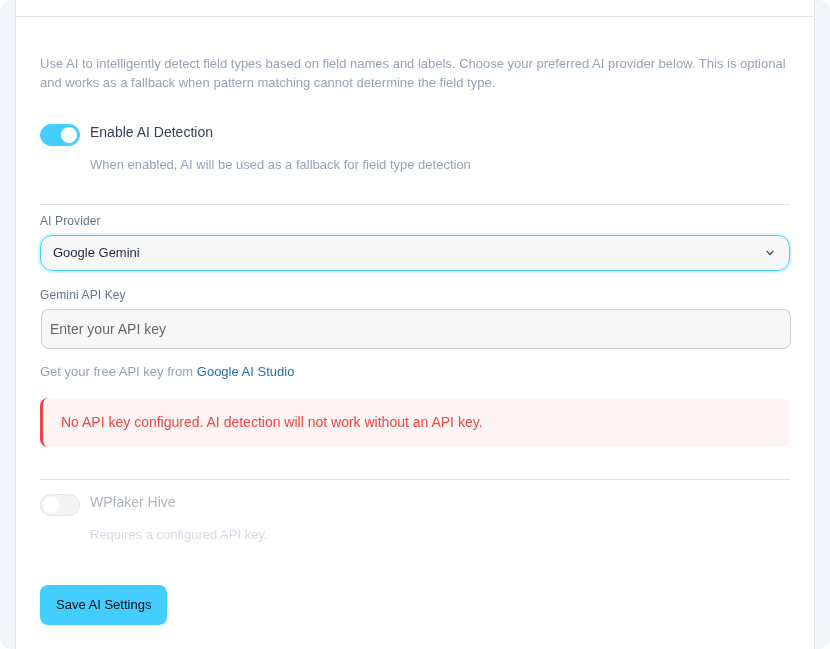
When AI field detection is enabled, an additional option becomes available in the settings panel: the WPfaker Hive. This is an entirely optional, community-oriented feature that allows your WPfaker installation to contribute anonymously to a collective knowledge base that all participating WPfaker users benefit from.
The idea behind the Hive is straightforward. Every time WPfaker's AI detection successfully identifies the correct faker method for a custom field name, that mapping represents a small piece of knowledge: a field called primary_residence should generate an address, a field called emergency_contact should produce a phone number, a field called customer_tax_id should return a tax identification number. Individually, these mappings solve a problem for one site. Collected across hundreds of WPfaker installations, they become a powerful dataset that reduces the need for AI calls in the first place.
When the Hive is enabled, WPfaker shares successfully detected field type mappings with the WPfaker Hive after each AI detection run. A mapping consists of two pieces of information: the field name and the faker method that was determined to be the correct match. Nothing else is transmitted. No site URLs, no domain names, no user information, no generated content, and no API keys leave your installation. The data is fully anonymous and contains only the bare mapping pair.
INFO
The Hive sends only field name to faker method mappings, such as primary_residence → address or emergency_contact → phone_number. No personal data, site URLs, WordPress configuration details, or generated content is ever included in the transmission.
The Hive works as an API-based exchange, not through plugin updates. The crowdsourced mappings are stored in the WPfaker Hive and queried in real time when your installation encounters an unknown field name. This means the benefit is immediate — as soon as another WPfaker installation contributes a mapping for a field name you encounter, your installation can use that mapping without waiting for a plugin update.
WARNING
The Hive is reciprocal. If you disable it, your installation will neither contribute mappings nor receive them. Only installations with the Hive enabled can query the shared mapping database.
The Hive can be toggled on and off independently of AI detection itself. You can use AI detection without participating in the Hive, and you can enable or disable the Hive at any time without affecting your AI detection configuration or cached results. The toggle appears in the AI-Powered Field Detection section of the settings page, directly below the AI provider configuration, and is only visible when AI detection is enabled.
Server-Side AI
In addition to client-side AI field detection (which uses your configured provider and API key), the WPfaker Hive server runs its own AI to expand short value lists into 50–100+ diverse entries. This is completely separate from the AI detection described above — it does not use your provider or API key, and incurs no cost on your end. See Value List Enrichment for details.
TIP
Enabling the Hive is a simple way to give back to the WPfaker community while also benefiting from it. The data you contribute is anonymous and minimal, and in return your installation gains access to field type mappings discovered by all other participating users. If you are comfortable with the field name mappings being shared, consider leaving the Hive enabled.
For a complete list of all data WPfaker transmits externally, see the Privacy & Data Transparency page.
For details on how the Hive mines generalizable patterns from community data, see Hive Pattern Mining.
For a broader understanding of how field detection integrates with the template system and custom field population, see the Field Detection and Custom Fields feature guides.