
Appearance
Settings
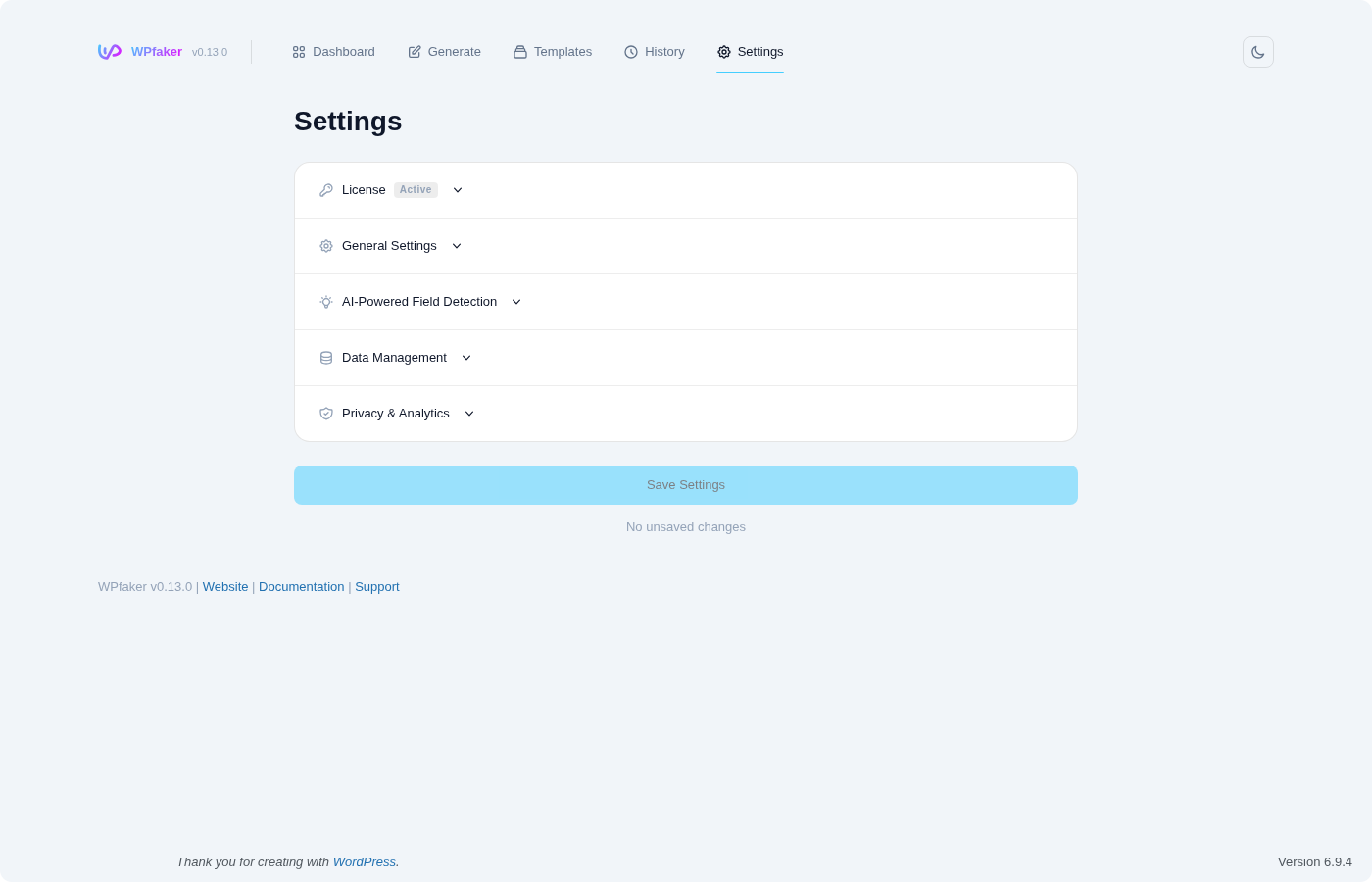
The Settings page is your central hub for configuring WPfaker's behavior across your entire WordPress site. Every default value, image provider connection, data cleanup preference, and license activation is managed here. Navigate to WPfaker > Settings in your WordPress admin sidebar to access it.
The page is divided into five accordion sections: License, General Settings, AI-Powered Field Detection, Data Management, and Privacy & Analytics. The General Settings section has a Save Settings button, and the AI-Powered Field Detection section has a Save AI Settings button.
General Settings
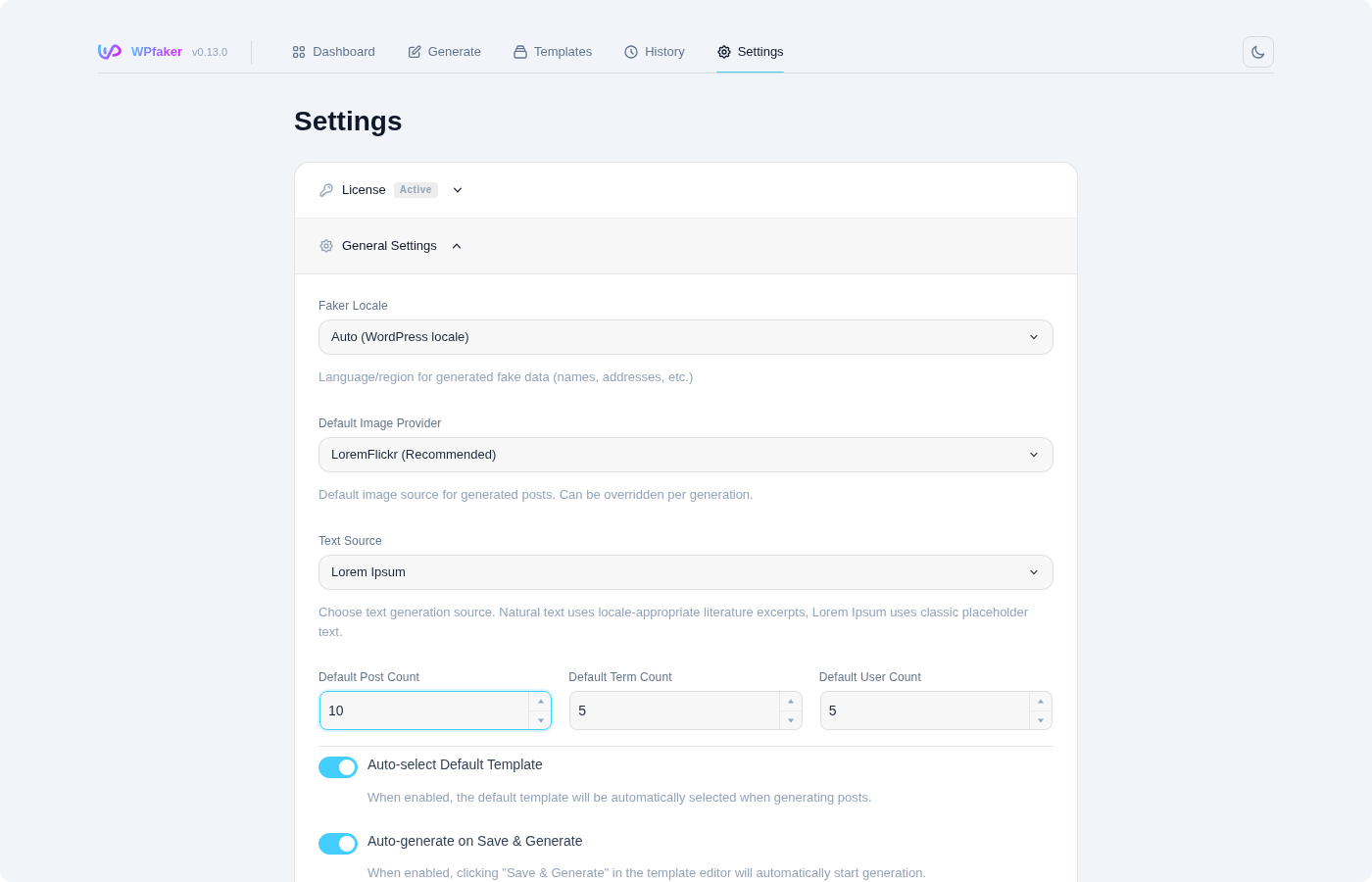
Faker Locale
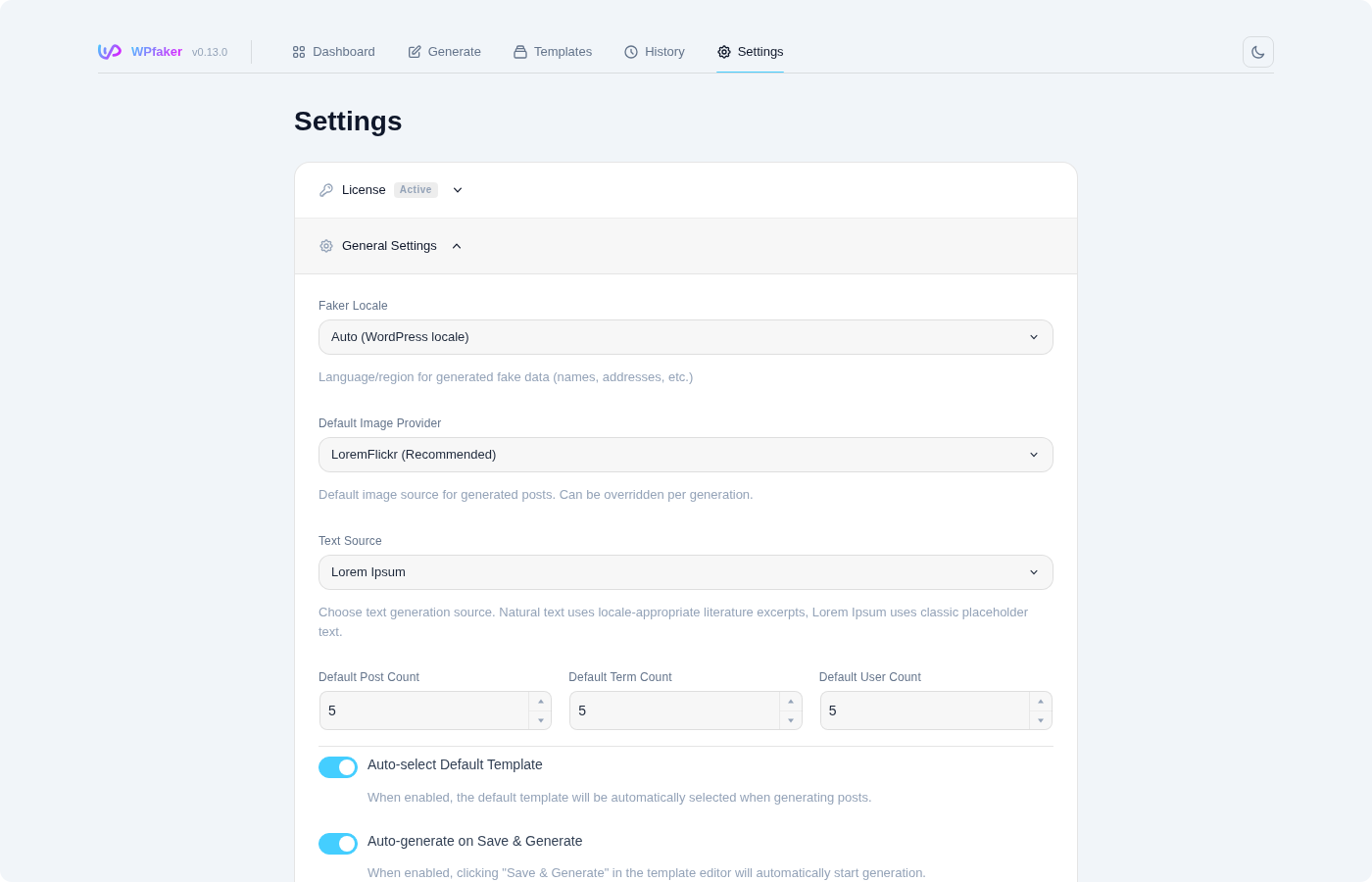
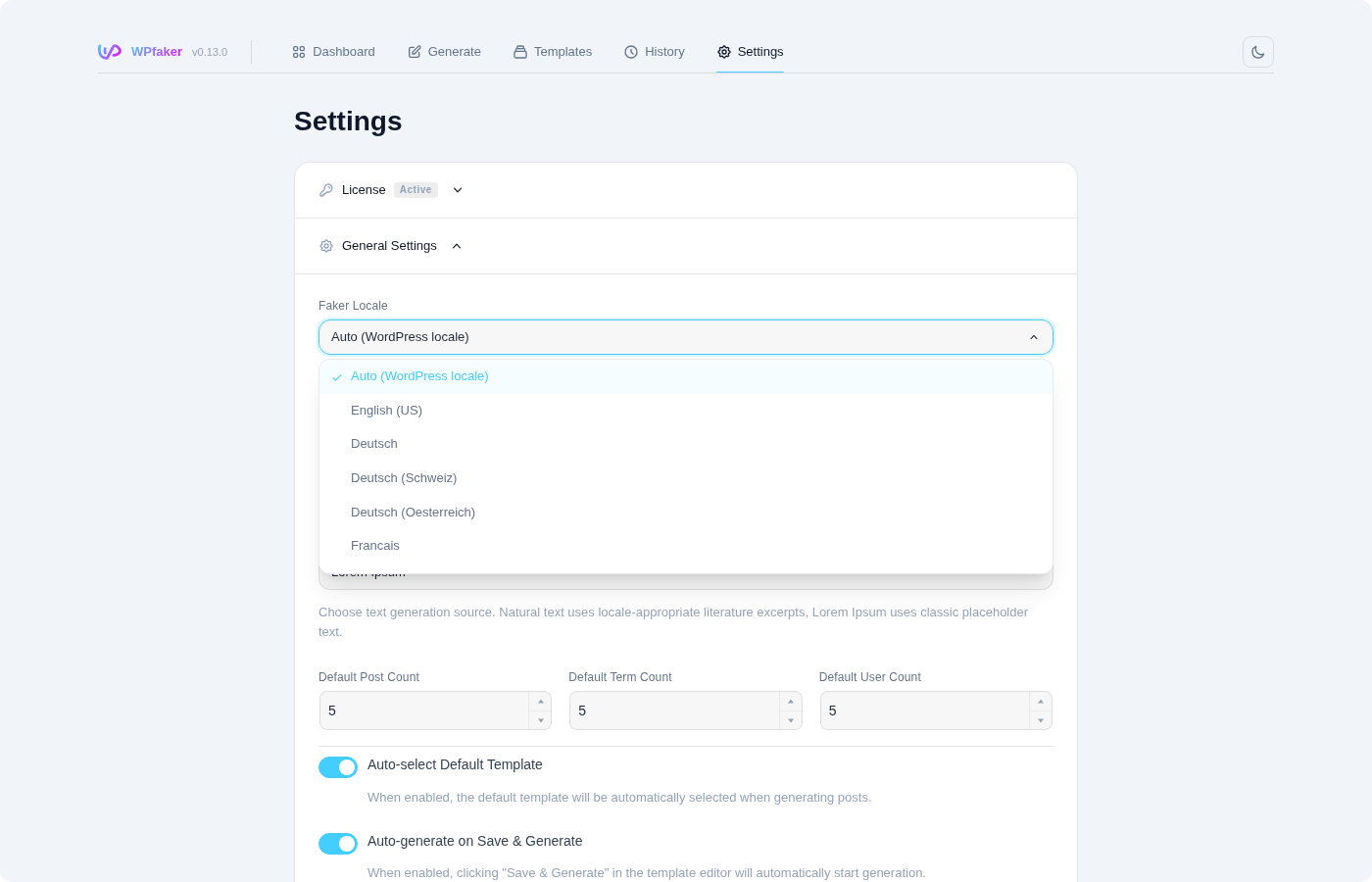
The Faker Locale setting determines the default language and regional format for all generated content. This single setting influences every aspect of fake data generation: person names follow the naming conventions of the selected region, addresses use country-specific street formats and postal codes, phone numbers match local formatting, company names include region-appropriate suffixes (GmbH for Germany, Inc. for the US, S.A. for Spain), and even financial data like IBAN numbers conform to country-specific structures.
When set to Auto (WordPress Locale), WPfaker reads your WordPress site language from Settings > General and maps it to the closest supported faker locale. This is the recommended setting for most users, as it ensures your generated content matches the language your site is configured for. If your WordPress language does not have a direct faker locale match, WPfaker falls back to English (en_US).
You can also select a specific locale manually, which is useful when your WordPress admin is in English but you need to generate content in another language for testing purposes. The full list of supported locales and what they affect is documented in detail on the Languages page.
INFO
The locale set here acts as a global default. You can override it per template in the template editor's General Settings tab. Each template can specify its own locale, which takes priority over this global setting during generation.
Default Counts
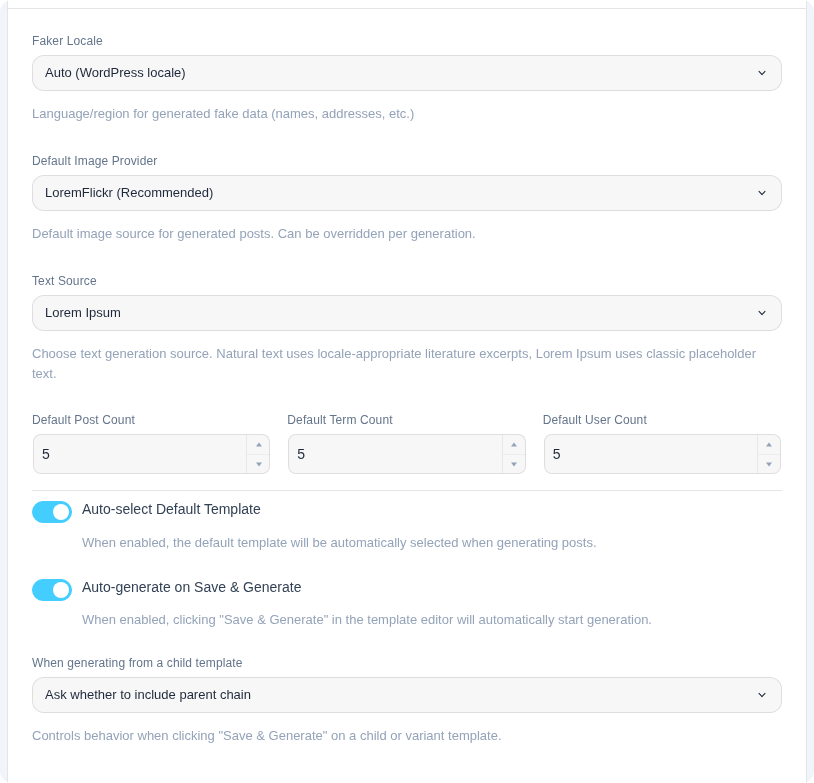
The default count settings control the initial values that appear in the number fields on each generation page. The Default Post Count (default: 5) pre-fills the post count on the Generate Posts page. The Default Term Count (default: 5) does the same for taxonomy term generation. The Default User Count (default: 5) sets the starting value on the Generate Users page.
These are purely convenience settings that save you from typing the same number every time you open a generation page. They do not impose any limits. You can always change the count before clicking Generate. The valid range is 1 to 500 for posts, terms, and users.
Remember Last Settings
WPfaker automatically saves your most recent generation configuration to the browser's localStorage after each session. The next time you visit a generation page, all your previous choices are restored: post count, role selections, variation settings, and other options. This behavior is always active and requires no configuration.
This is particularly useful during iterative development when you keep regenerating the same type of content with the same settings. Instead of reconfiguring everything each time, you can simply click Generate and get the same setup you used last time.
Since the settings are stored in the browser's localStorage, they are specific to your browser and device. Opening WPfaker in an incognito window, a different browser, or on another computer starts with default values. Your saved settings always take priority over template defaults. If you have a default template configured for a post type but your localStorage has different values from a previous session, the localStorage values win.
TIP
If your generation page is loading unexpected settings, clear your browser's localStorage for the WPfaker keys. This helps you determine whether the values are coming from localStorage or from a template configuration.
Auto-Select Default Template
When this option is enabled, WPfaker automatically loads the default template for the currently selected post type whenever you open the Generate Posts page. If you have created a template for "Products" and marked it as the default, switching to the Products post type on the Generate page will immediately load that template's field configuration.
This setting works hand in hand with the Template System. Once you have invested time in setting up templates for your custom post types, having them load automatically saves you from manually selecting the template each time. If no default template exists for a given post type, WPfaker simply uses its standard generation settings.
When both this setting and Remember Last Settings are enabled, the saved localStorage settings take priority. This means your previous session's choices will override the template defaults. If you want templates to always control the generation settings, disable Remember Last Settings and rely on Auto-Select Default Template instead.
Default: Enabled
Auto-Run Save & Generate
When enabled, clicking Save & Generate in the template editor immediately triggers post generation after navigating to the Generate page — no extra click required. When disabled, Save & Generate navigates to the Generate page with the template pre-applied, but waits for you to click Generate manually.
If posts of the same type already exist, a confirmation modal appears before generation starts, letting you choose whether to delete existing posts first.
Default: Enabled
Text Source
Controls the style of generated text content across all text and textarea fields.
Lorem (default) generates classical Lorem Ipsum placeholder text. This is the traditional approach: clearly fake Latin-derived text that nobody will mistake for real content.
Realtext generates natural-sounding prose using FakerPHP's realText method, which produces readable sentences drawn from public domain literature. The output reads like actual writing — grammatically correct with varied sentence structure.
TIP
Use Realtext when you want generated content to look realistic in screenshots, client demos, or design reviews. Use Lorem when you want to make it obvious that the content is placeholder data.
Hourly Rate
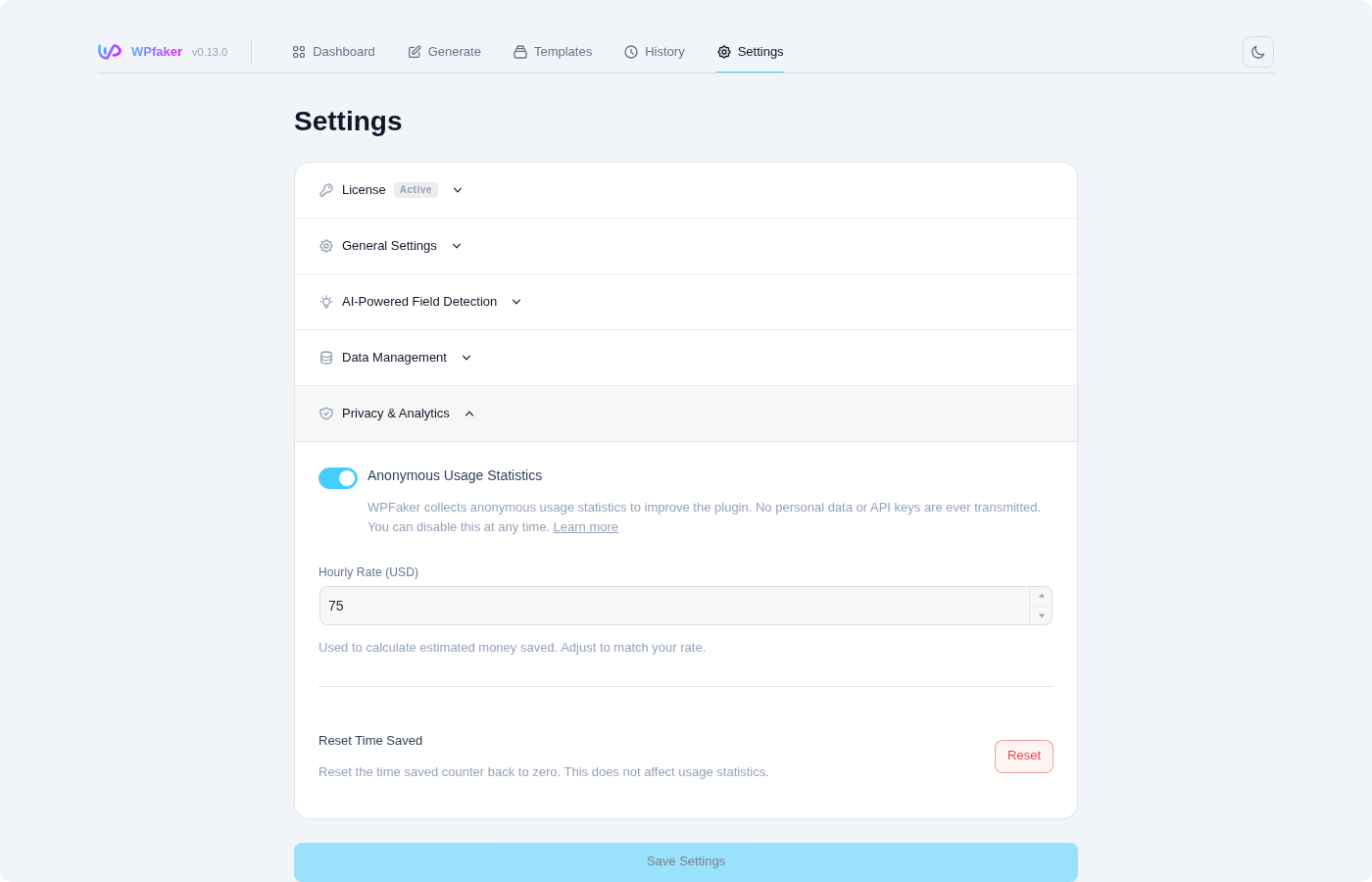
WPfaker tracks how much time its automated generation saves compared to manual data entry. The hourly rate setting (default: $75/hour) is used to calculate the dollar value of that time savings, displayed on the Generate page's Time Saved card.
This is purely informational — it does not affect any generation behavior. Set it to your own hourly rate or your team's average rate for a more accurate savings estimate.
Child Generate Behavior
When you generate posts for a CPT that has linked child templates, this setting controls what happens to the related child CPTs:
| Option | Behavior |
|---|---|
| Ask (default) | A confirmation dialog asks whether to also generate child posts |
| Child Only | Generates only the child posts from linked templates, skipping the parent |
| Parent Chain | Generates both parent and all linked child posts automatically without asking |
This setting is most relevant for complex multi-CPT setups where a parent template (e.g., "Movies") has linked child templates (e.g., "Actors", "Reviews"). The Ask option keeps you in control on each run. Parent Chain is convenient when you always want the full data set generated together.
Delete History on Deactivate
When this checkbox is enabled, deactivating the WPfaker plugin from the WordPress Plugins page will automatically drop the wpfaker_history and wpfaker_templates database tables. This means all generation history and saved templates will be permanently lost. The wpfaker_field_detections cache table is preserved until the plugin is fully uninstalled.
This setting does not delete the generated content itself. Your posts, terms, users, and media files remain in WordPress even after deactivation. It only clears WPfaker's internal tracking records. If you want to remove all generated content as well, use the Delete All WPfaker Data option in the Danger Zone before deactivating the plugin.
WARNING
Enabling this option means you lose the ability to track and clean up WPfaker-generated content after deactivating the plugin. If you plan to reactivate WPfaker later, keep this option disabled so your history is preserved.
Telemetry
When enabled, WPfaker sends anonymous usage data to help improve the plugin. This includes aggregate generation counts and feature usage — no personal data, field names, or content is transmitted. You can disable this at any time.
Default: Enabled
Data Management Defaults
These settings control the default behavior of the checkboxes that appear in the "Delete & Generate" confirmation dialog on the Generate Posts page. When you click Delete & Generate, a modal asks you what related content should be removed alongside the posts. The toggles here simply set the initial state of those checkboxes, saving you from checking or unchecking them every time.
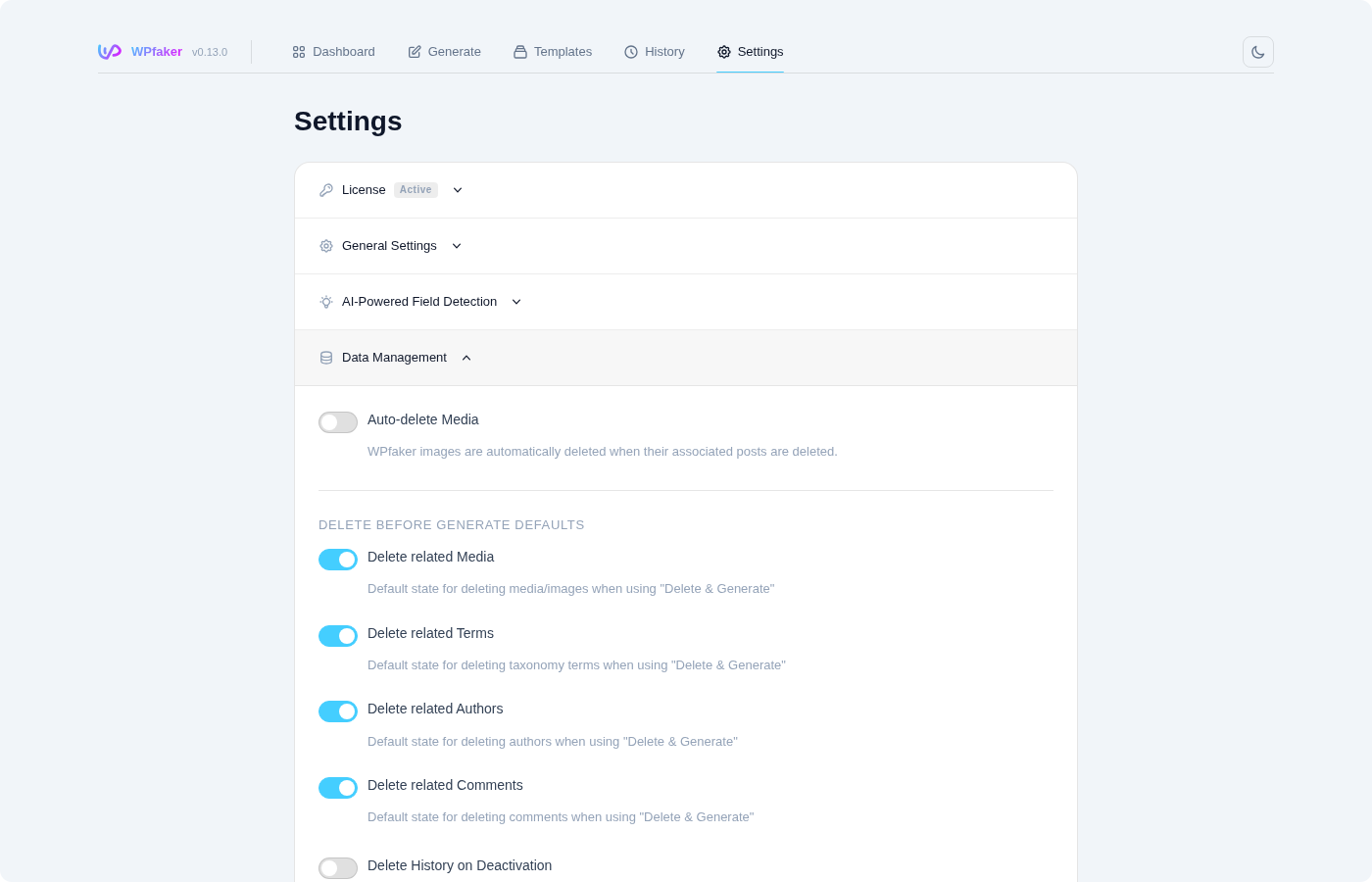
Delete Related Media
Default: ON. When enabled, the Delete & Generate action also removes featured images and gallery images that WPfaker downloaded and attached to the generated posts. These images are deleted from the WordPress Media Library entirely, freeing up disk space.
This is almost always what you want. Generated images serve no purpose once their associated posts are deleted, and leaving them behind clutters your Media Library with orphaned files. The only reason to disable this is if you have manually reused a WPfaker-generated image in other content and want to preserve it.
Delete Related Terms
Default: ON. When enabled, taxonomy terms that WPfaker auto-created during post generation are also removed. This includes categories, tags, and custom taxonomy terms that were generated to give posts realistic taxonomy assignments.
Note that this only targets terms that WPfaker itself created and tracked in its History. If WPfaker assigned existing, manually created categories to generated posts, those categories are left untouched. Only the auto-generated terms are deleted.
Delete Related Authors
Default: ON. When enabled, user accounts that WPfaker auto-created as post authors are also removed during Delete & Generate. WPfaker can automatically create author accounts when generating posts to simulate a multi-author blog, and this setting ensures those accounts are cleaned up alongside the posts they authored.
Delete Related Comments
Default: ON. When enabled, comments that WPfaker generated for the affected posts are also removed during Delete & Generate. This keeps your comment tables clean and prevents orphaned comments from accumulating after post deletion.
INFO
These are only defaults for the confirmation dialog. You can always change the checkboxes before confirming the deletion. The actual Delete & Generate action respects whatever is checked at the moment you confirm, regardless of these default settings.
Image Provider
The Default Image Provider setting within General Settings determines which provider is pre-selected on the Generate Posts page. WPfaker supports four image providers for generating featured images and populating image-type custom fields. Three providers work immediately without any configuration. The fourth generates simple colored placeholder images. You can always change the provider per generation session, but setting a default here saves you a click each time.
LoremFlickr (default) delivers real photographs filtered by category keywords. When WPfaker detects your custom post type context — for example, a "recipe" CPT — it automatically requests food-related images. No API key is required. This is the recommended provider for most users since it produces context-appropriate images with zero setup.
Unsplash delivers high-quality photographs through the WPfaker API proxy. No API key is required on your end because requests are routed through the WPfaker backend. Unsplash offers excellent photo quality and supports category-based image selection.
Lorem Picsum provides random high-quality photographs. It requires no API key and no configuration. The trade-off is that you cannot filter images by category, so the photos are entirely random. This is a good choice when you just need any image and do not care about relevance to your content.
Placeholder.com generates simple solid-colored placeholder images with customizable dimensions. This is useful when you need images for layout testing but do not want to download actual photographs. No API key is required.
TIP
For the best experience with minimal setup, use LoremFlickr as your default provider. It delivers category-aware photos with no API key required and automatically matches images to your post type context.
For a comprehensive guide on image handling, including category auto-detection, custom dimensions, aspect ratios, and how images are attached to posts, see the Image Handling feature documentation.
License Management
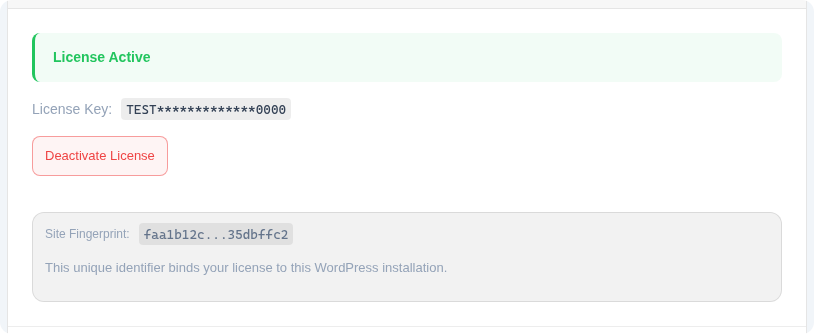
The License accordion section shows your current license status. A valid, activated license is required for the plugin to function. You can see your license key (partially masked), its expiration date, and the site fingerprint that identifies your WordPress installation for license validation purposes.
For detailed information about purchasing, activating, deactivating, and transferring licenses, see the dedicated License guide.
TIP
If you need to move your license to a different WordPress installation, deactivate it here first, then activate it on the new site.
Saving Settings
The Settings page has two save buttons. Click Save Settings at the bottom of the page to persist your locale, default counts, image provider, and toggle preferences from the General Settings, Data Management, and Privacy & Analytics sections. Use Save AI Settings inside the AI-Powered Field Detection section for AI detection configuration (see AI Field Detection for details).
A pulsing Unsaved changes indicator appears at the top of a section whenever you have modified values that have not been saved yet. This visual cue prevents you from accidentally navigating away and losing your changes.
Settings REST API
All settings can also be read and updated programmatically through WPfaker's REST API. This is useful for automated testing workflows, CI/CD pipelines, or managing WPfaker across multiple sites. See the Settings API reference for available endpoints, authentication requirements, and example requests.