
Appearance
License
WPfaker requires a valid license key to function. Without an active license, the plugin displays a license gate screen on startup and none of its features are accessible. This page explains everything you need to know about the licensing model: key format, the yearly license, how activation and deactivation work under the hood, caching behavior, and how to troubleshoot common licensing issues.
If you have not yet installed WPfaker, start with the Installation guide. If you already have the plugin installed and just need to enter your key, skip ahead to the Activation section.
License Key Format
WPfaker license keys follow the format XXXX-XXXX-XXXX-XXXX — four groups of four alphanumeric characters separated by hyphens. You receive your key via email after purchasing a license at wpfaker.com (coming soon). The key is case-insensitive, so you can enter it in uppercase or lowercase without affecting validation.
Keep Your Key Safe
Your license key is tied to your purchase and cannot be recovered if lost. Store it in a password manager or secure location. If you do lose your key, contact support with your purchase details and we can retrieve it for you.
License Type
WPfaker offers a yearly license that grants access to the exact same features for every customer — every capability, every field plugin adapter, every image provider, the full REST API, and all future updates within the license period.
Yearly License
The yearly license is valid for 12 months from the date of purchase. Pricing will be announced at launch. During that year, you receive all plugin updates and full access to every feature. When the license expires, the plugin stops functioning until you renew. Renewal extends the license for another 12 months from the expiration date, not from the renewal date, so you do not lose any days if you renew early.
How Activation Works
When you activate a license key, WPfaker performs a multi-step validation process that ties the key to your specific WordPress installation. Understanding this process is helpful if you ever need to move your license to a different site or troubleshoot activation issues.
Site Fingerprint
Each license activation is bound to a specific WordPress installation through a site fingerprint — a SHA256 hash computed from six values that uniquely identify your WordPress setup:
php
$fingerprint = hash('sha256', implode('|', [
    $table_prefix,   // WordPress database table prefix
    AUTH_KEY,         // Security key from wp-config.php
    SECURE_AUTH_KEY,  // Security key from wp-config.php
    home_url(),       // The site URL from WordPress options
    ABSPATH,          // The WordPress installation path on disk
    DB_NAME,          // The database name
]));
The resulting hash is a one-way string that uniquely identifies your installation without transmitting any sensitive configuration data to the license server. Only the hash itself is sent, never the raw values that produced it.
Why a Fingerprint?
The fingerprint uniquely identifies each WordPress installation so the license server can track which sites are active. This allows you to activate your license on as many sites as you need — development, staging, and testing environments can all run simultaneously.
The Activation Request
When you click Activate License, the plugin sends an HTTPS request to the WPfaker license API containing your license key and the computed site fingerprint. The server validates the key, checks that it has not expired, and — if everything checks out — records the activation. The server's response includes the license type, expiration date (if applicable), and confirmation that the activation succeeded.
Upon successful activation, WPfaker stores the license status locally using a WordPress transient (see License Caching below) so that subsequent page loads do not need to contact the license server.
Activation
First Launch
The simplest way to activate your license is through the splash screen that appears the first time you open WPfaker after installation. This full-screen prompt asks for your license key and blocks access to all other features until activation is complete. Enter your key and click Activate. If the key is valid and available, you will be redirected to the WPfaker dashboard within a few seconds.
Settings Page
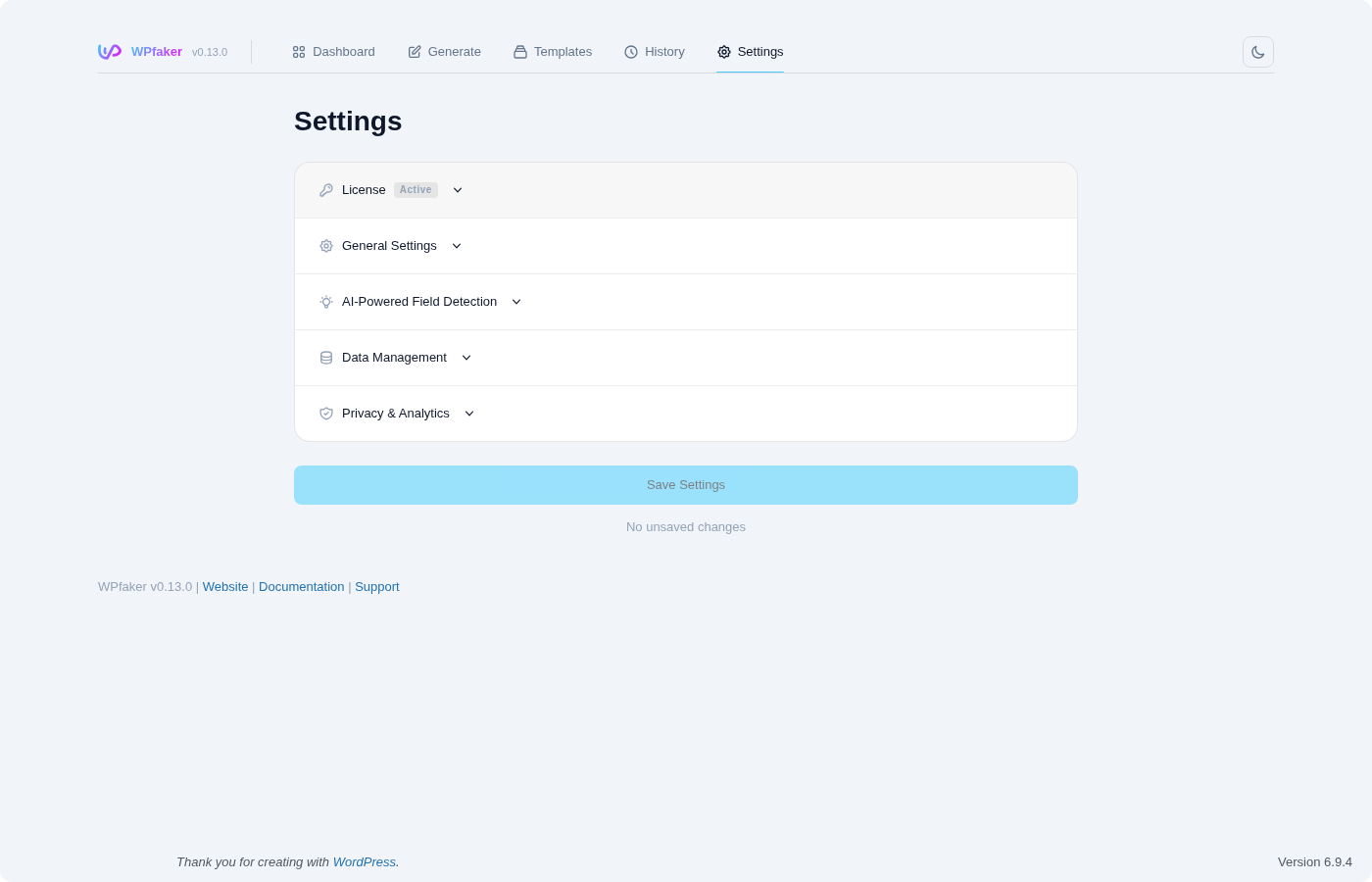
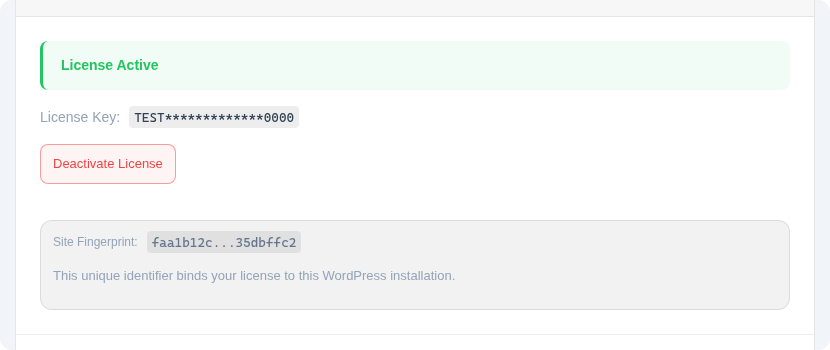
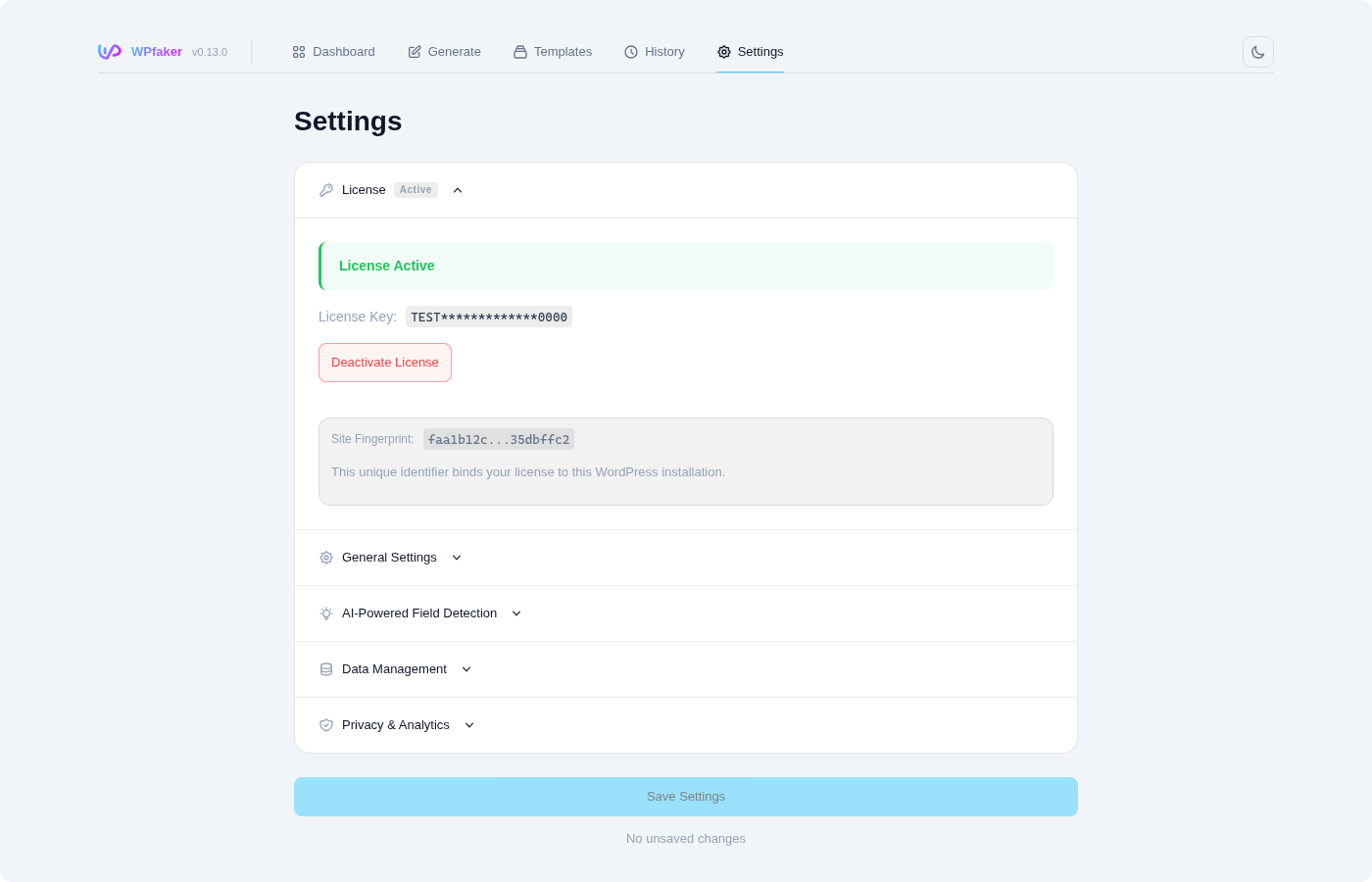
Once activated, you can view or change your license key through the settings interface. Navigate to WPfaker > Settings and scroll to the License section. Here you can deactivate your current key or enter a different one.
Deactivation
Deactivating your license removes the current WordPress installation from your active sites. This is useful when you no longer use WPfaker on a particular site and want to keep your activation list clean.
To deactivate, navigate to WPfaker > Settings and click Deactivate License in the License section. The plugin sends a deactivation request to the license server, which clears the site fingerprint. After deactivation, WPfaker reverts to the license gate screen on the current site.
License Caching
To avoid making an API call to the license server on every WordPress page load, WPfaker caches the license validation result for 2 hours using WordPress transients. The transient is stored under the key wpfaker_license_status and contains the full license status including validity, license type, and expiration date.
php
// The license status is cached for 2 hours
set_transient('wpfaker_license_status', $status, 2 * HOUR_IN_SECONDS);
This means that after a successful activation or validation, the plugin will not contact the license server again for 2 hours. When the transient expires, the next WPfaker page load triggers a fresh validation request in the background. If the server is temporarily unreachable at that moment, the plugin will show a license error — but the 2-hour cache window provides a buffer for short connectivity interruptions.
You can manually force a fresh validation at any time by clicking the Refresh License button on the Settings page or by calling the /wpfaker/v1/license/refresh REST API endpoint. This bypasses the cache and immediately queries the license server for the current status.
REST API Endpoints
WPfaker registers four license-related REST API endpoints under the wpfaker/v1 namespace. All endpoints require the manage_options capability (Administrator role) and use WordPress nonce authentication. These endpoints are useful for automating license management in deployment scripts, CI/CD pipelines, or custom admin interfaces.
GET /wpfaker/v1/license
Returns the current license status for this WordPress installation. If a cached status exists (within the 2-hour transient window), it is returned without contacting the license server. This endpoint is safe to call frequently without performance concerns.
Response:
json
{
  "success": true,
  "license": {
    "key": "XXXX-****-****-XXXX",
    "has_key": true,
    "valid": true,
    "status": "active",
    "message": "",
    "expires": "2026-03-15T10:30:00Z",
    "customer": "customer@example.com",
    "site_fingerprint": "a1b2c3d4...e5f6g7h8",
    "site_url": "https://yoursite.com"
  }
}
The key field is masked for security — only the first and last four characters are visible. The expires field contains the license expiration timestamp. The site_fingerprint is a shortened version of the full SHA256 hash (first 8 + last 8 characters).
POST /wpfaker/v1/license/activate
Activates a license key for the current site. The site fingerprint is computed automatically by the plugin — you only need to provide the license key in the request body.
Request body:
json
{
  "license_key": "XXXX-XXXX-XXXX-XXXX"
}
Response (success):
json
{
  "success": true,
  "message": "License activated successfully.",
  "license": {
    "key": "XXXX-****-****-XXXX",
    "has_key": true,
    "valid": true,
    "status": "active",
    "expires": "2026-03-15T10:30:00Z",
    "customer": "customer@example.com"
  }
}
Response (failure):
json
{
  "success": false,
  "message": "Could not activate license."
}
POST /wpfaker/v1/license/deactivate
Removes the current site's fingerprint from the license, deactivating WPfaker on this installation.
Response (success):
json
{
  "success": true,
  "message": "License deactivated successfully.",
  "license": {
    "key": "",
    "has_key": false,
    "valid": false,
    "status": "inactive"
  }
}
Response (failure):
json
{
  "success": false,
  "message": "Could not deactivate license."
}
POST /wpfaker/v1/license/refresh
Forces a fresh license validation against the WPfaker API, bypassing the 2-hour transient cache. Use this after renewing an expired license or when you suspect the cached status is stale.
Response:
json
{
  "success": true,
  "message": "License status refreshed.",
  "license": {
    "key": "XXXX-****-****-XXXX",
    "has_key": true,
    "valid": true,
    "status": "active",
    "message": "",
    "expires": "2026-03-15T10:30:00Z"
  }
}
For a complete overview of all WPfaker REST API endpoints beyond licensing, see the API documentation.
Troubleshooting
Invalid License Key
If the activation screen shows "Invalid license key" after you enter your key, double-check that you have copied the entire key including all four segments and the hyphens. The most common cause is accidentally missing a character when copying from an email. If the key still does not work, verify that your purchase was completed successfully and that you received a confirmation email. Contact support if you believe the key should be valid.
Fingerprint Mismatch After Migration
If your license suddenly shows as invalid after migrating a WordPress site to a new server, changing the domain, renaming the database, or regenerating the security keys in wp-config.php, the site fingerprint has changed. The license server still has the old fingerprint on record, so the current site is not recognized as the same installation.
To resolve this, simply re-activate the license on the new environment. The new fingerprint will be registered as an additional activation. If you no longer use WPfaker on the old environment, you can deactivate the stale activation from the old site's settings or contact support to clean it up.
Common Fingerprint Change Triggers
The six values that make up the fingerprint are: the database table prefix, two security keys from wp-config.php, the site URL (home_url()), the WordPress installation path (ABSPATH), and the database name (DB_NAME). Changing any one of these — even something as simple as switching from http to https in the site URL — will alter the fingerprint and require reactivation.
Expired License
When a yearly license passes its expiration date, the plugin stops functioning and displays an "License expired" message. To resolve this, renew your license at wpfaker.com when available. After renewal, return to WPfaker > Settings and click Refresh License to pull the updated status from the server. The plugin should immediately recognize the renewed license and unlock all features.
License Server Unreachable
If you see "Could not connect to license server" or experience activation timeouts, the plugin cannot reach the WPfaker API over HTTPS. This can happen if your server's outbound HTTPS connections are blocked by a firewall, if a security plugin is intercepting external HTTP requests, or if the WPfaker API is temporarily down for maintenance.
First, verify that your server can make outbound HTTPS requests (most WordPress installations require this for plugin updates, so it is usually enabled). Check whether any security plugins (such as Wordfence or Sucuri) are blocking requests to external domains. If the API is temporarily unavailable, wait a few minutes and try again.
Cached Status as a Buffer
If the license server becomes unreachable after your license was already activated, the 2-hour transient cache ensures that the plugin continues working normally for at least 2 hours. The license error only appears if both the cache has expired and the server is unreachable at the same time.