
Appearance
Installation
Installing WPfaker is straightforward and follows the same workflow as any other WordPress plugin. This guide covers three installation methods, walks you through first-time setup and license activation, and addresses common issues you may encounter along the way.
Development Environments Only
WPfaker is designed for development, staging, and testing environments. Do not install it on production sites that contain real user data. Generating bulk content on a live site can overwrite data, fill your database with test entries, and confuse real users. Always use WPfaker on a separate local or staging installation.
Requirements
Before you begin, verify that your environment meets the minimum requirements. WPfaker will not activate if these conditions are not met.
| Requirement | Minimum Version | Notes |
|---|---|---|
| WordPress | 6.0 | REST API features and block editor support required |
| PHP | 7.4 | The codebase uses features available from PHP 7.4 onward |
| User Role | Administrator | The manage_options capability is required for all WPfaker operations |
| License Key | Required | See License documentation |
Method 1: Upload via WordPress Admin (Recommended)
The simplest way to install WPfaker is through the WordPress plugin upload interface. This method handles file extraction and placement automatically, so you do not need FTP access or command-line tools.
Start by downloading the latest release ZIP file from your WPfaker account. The file will be named something like wpfaker-0.10.0.zip. Do not extract the ZIP — WordPress expects the compressed archive.
In your WordPress admin dashboard, navigate to Plugins > Add New and click the Upload Plugin button at the top of the page. Click Choose File, select the ZIP file you just downloaded, and then click Install Now. WordPress will extract the plugin files into wp-content/plugins/wpfaker/ and display a success message. Click Activate Plugin to enable WPfaker immediately.
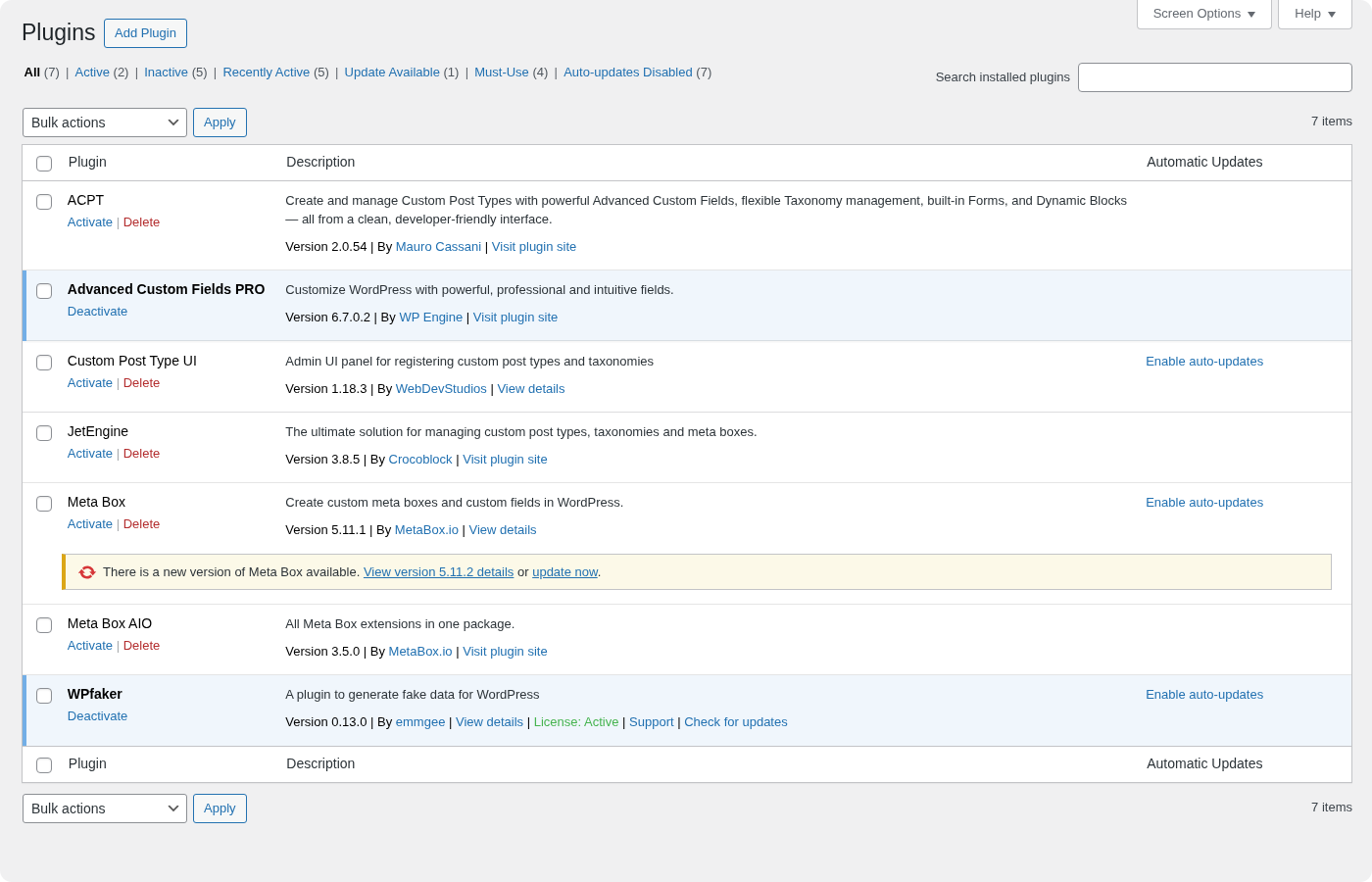
After activation, you will see a new WPfaker menu item in the WordPress admin sidebar. The first time you open it, the plugin will display a license activation screen — see the First-Time Setup section below.
Method 2: Manual Upload via FTP or SFTP
If you prefer to manage plugin files directly — for example, on a remote server without WordPress admin access to the plugin uploader — you can install WPfaker manually via FTP or SFTP.
Download the latest release ZIP from your WPfaker account and extract it on your local machine. You should now have a folder called wpfaker containing wpfaker.php and the rest of the plugin files.
Using your FTP or SFTP client, connect to your WordPress server and navigate to the wp-content/plugins/ directory. Upload the entire wpfaker folder there, so the main plugin file ends up at wp-content/plugins/wpfaker/wpfaker.php.
Once the upload is complete, go to Plugins in your WordPress admin dashboard. Find "WPfaker" in the plugin list and click Activate. If the plugin does not appear, double-check that the folder structure is correct and that all files were uploaded successfully.
Method 3: Composer
For developers using Composer-managed WordPress installations (such as Bedrock or similar setups), WPfaker can be installed as a Composer package.
bash
composer require emmgee/wpfakerAfter Composer finishes installing the package, activate the plugin through your WordPress admin dashboard or via WP-CLI:
bash
wp plugin activate wpfakerComposer Repository
If the package is not available on Packagist, you may need to add a custom repository source to your composer.json. Refer to the Composer documentation for instructions on adding VCS repositories.
First-Time Setup
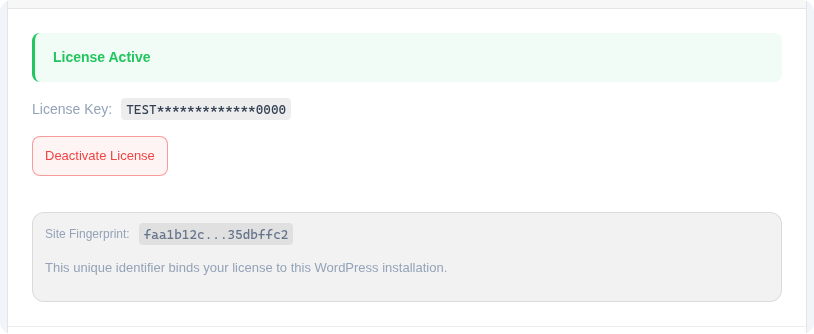
When you activate WPfaker for the first time on a new WordPress installation, the plugin displays a license activation splash screen before granting access to any features. This screen appears instead of the regular WPfaker dashboard and prompts you to enter your license key.
Enter your license key in the format XXXX-XXXX-XXXX-XXXX and click Activate License. The plugin will send your key and a site fingerprint (a hash of your WordPress installation's unique identifiers) to the WPfaker license server for validation. If the key is valid and has not expired, the activation succeeds and the full WPfaker dashboard becomes available.
WPfaker offers a yearly license that grants access to all features for 12 months, with renewal available before or after expiration. For complete details on license activation, deactivation, and the site fingerprint system, see the License documentation.
Optional: AI Field Detection
WPfaker's built-in pattern matching handles the vast majority of field names automatically. However, if your project uses unusual or domain-specific field names that pattern matching cannot resolve, you can enable the optional AI-powered detection tier.
Navigate to WPfaker > Settings and scroll to the "AI-Powered Field Detection" section. Enable the toggle, select your preferred AI provider (Google Gemini, Anthropic Claude, or OpenAI GPT), enter your API key, and click Test Connection to verify that the key works. Save your settings. From this point on, WPfaker will consult the selected AI provider as a fallback when its own pattern matching produces no confident result.
For a deeper look at how the two-tier detection system works, see the AI Settings and Field Detection documentation.
Updating WPfaker
Automatic Updates
When a new version of WPfaker is released, the plugin's built-in update checker will detect it and display an update notification in your WordPress admin dashboard, just like any other plugin update. Click Update Now to install the latest version. Your settings, templates, and generation history are preserved across updates.
Manual Updates
If automatic updates are not available or you prefer manual control, download the latest release ZIP from your WPfaker account. Then follow the same steps as the initial installation: go to Plugins > Add New > Upload Plugin, select the new ZIP file, and install it. WordPress will prompt you to replace the existing version. Click Replace current with uploaded to complete the update.
Back Up Before Updating
While WPfaker preserves all data across updates, it is always good practice to back up your database before updating any plugin — especially on staging environments with important test configurations or saved templates.
Troubleshooting
Plugin Does Not Appear After Upload
If you uploaded the plugin but it does not show up in the WordPress plugin list, the most common cause is an incorrect folder structure. The main plugin file must be located at wp-content/plugins/wpfaker/wpfaker.php. If the ZIP extraction created a nested folder (e.g., plugins/wpfaker-0.7.0/wpfaker/), move the inner wpfaker folder up one level so it sits directly inside plugins/.
PHP Version Error on Activation
If WordPress shows a "requires PHP 7.4" error when you try to activate WPfaker, your server is running an older PHP version. Check your current PHP version by navigating to Tools > Site Health > Info > Server in WordPress, or by running php -v on the command line. Contact your hosting provider to upgrade to PHP 7.4 or higher, or switch to a newer PHP version if your server supports multiple versions.
WordPress Version Compatibility
WPfaker requires WordPress 6.0 or higher. If you are running an older version, update WordPress before attempting to activate the plugin. You can check your current version at Dashboard > Updates or at Tools > Site Health > Info > WordPress.
Permission Denied Errors
WPfaker requires the manage_options capability, which is granted to the Administrator role by default. If you see permission errors, make sure you are logged in as an Administrator. If you are using a custom role management plugin that has modified the Administrator role's capabilities, verify that manage_options is still assigned.
Database Tables Not Created
WPfaker automatically creates three database tables on activation:
{prefix}wpfaker_history— Tracks all generated content for cleanup and history features{prefix}wpfaker_templates— Stores saved template configurations{prefix}wpfaker_field_detections— Caches field type detections to avoid repeated pattern matching and AI calls
If these tables were not created (which can happen if the activation hook was interrupted or if database permissions are restrictive), try deactivating and then reactivating the plugin. If the problem persists, check that your WordPress database user has CREATE TABLE privileges.
Uninstalling WPfaker
Before uninstalling, it is important to understand what gets removed and what stays behind. By default, deactivating and deleting WPfaker removes the plugin files but does not delete generated content. Any posts, terms, and users that WPfaker created will remain in your WordPress database. If you want to clean up generated content before uninstalling, use the History screen to bulk-delete everything WPfaker created.
WPfaker also offers an option to automatically delete its tracking data when the plugin is deactivated. To enable this:
- Navigate to WPfaker > Settings
- Enable Delete History on Deactivation
- Save settings
- Deactivate the plugin from Plugins
Irreversible Data Deletion
When "Delete History on Deactivation" is enabled, the wpfaker_history and wpfaker_templates database tables are dropped on deactivation. This means all generation history and saved templates will be permanently lost. The wpfaker_field_detections cache table is preserved until the plugin is fully uninstalled. Make sure to export any templates you want to keep before deactivating. This setting does not delete the generated posts, terms, or users themselves — only WPfaker's internal tracking data.
After deactivating, you can safely delete the plugin from the WordPress plugin list. To reinstall later, simply follow the installation steps above. WPfaker will recreate its database tables on the next activation.