
Appearance
History & Tracking
Every piece of content that WPfaker generates is meticulously tracked in a dedicated database table (wp_wpfaker_history). This tracking system is the backbone of WPfaker's content management capabilities — it is what allows you to see exactly what was generated, when it was created, and whether it still exists in WordPress. Without history tracking, cleaning up test data would mean manually hunting through your posts, terms, and users to figure out which ones came from WPfaker and which ones you created by hand. The history system eliminates that guesswork entirely.
What Gets Tracked
When WPfaker creates a post, term, or user, it writes a record to the history table that captures everything you need to identify and manage that content later. Each record includes the content type (post, term, user, comment, or media), the WordPress content ID so the record can be linked back to the actual item, and the content subtype (post type or taxonomy slug) to distinguish between different kinds of content. The generation timestamp records exactly when the item was created. Additional details — such as the item's title or name, the variation profile used during generation, and the locale setting — are stored in a flexible metadata field for reference.
This level of detail means you can always reconstruct what happened during a generation run, even weeks or months after the fact. If you generated 50 blog posts in English with the Random variation profile last Tuesday, the history will tell you exactly that.
History Interface
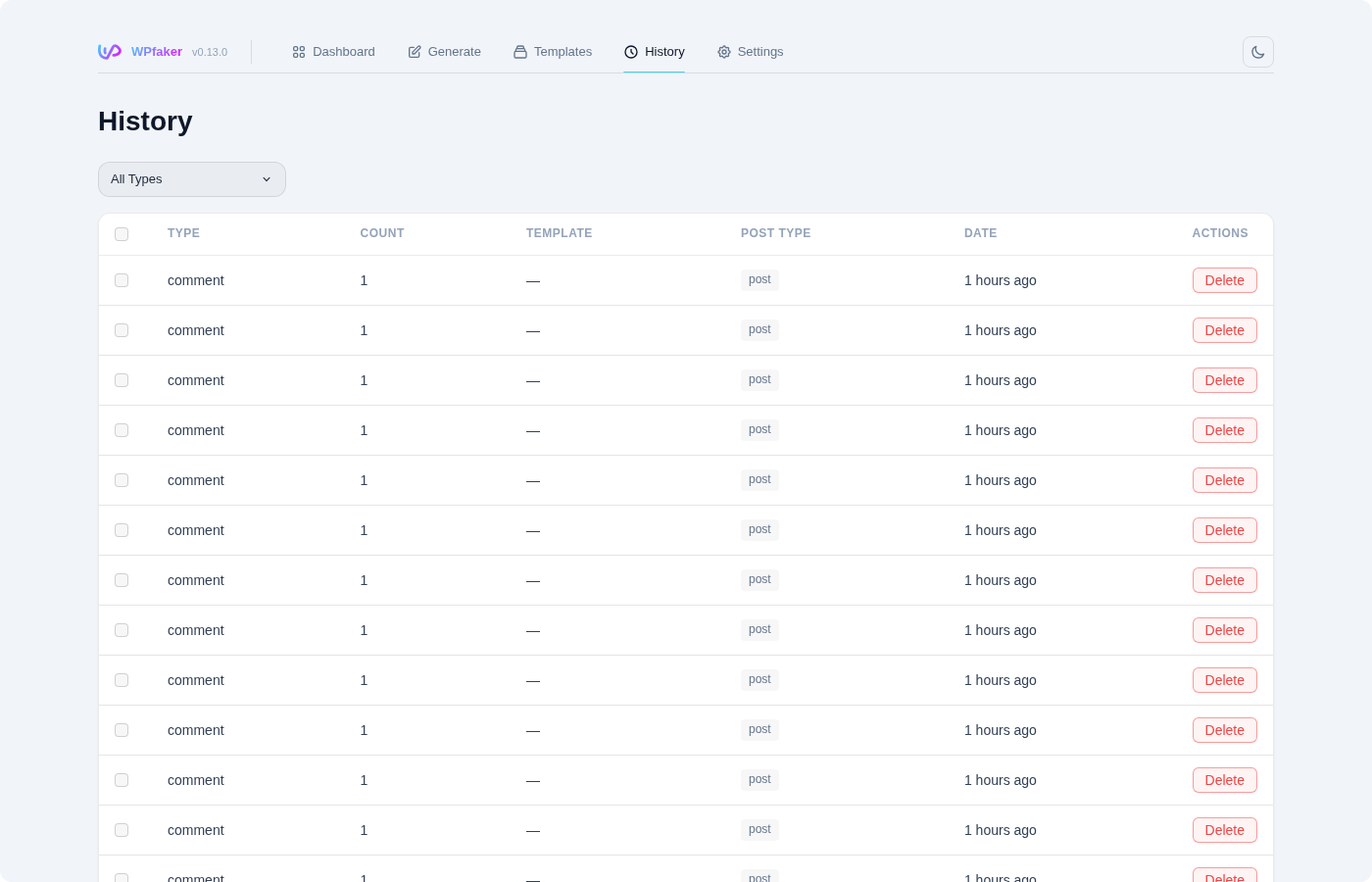
You can access the full History interface by navigating to WPfaker > History in your WordPress admin sidebar. The interface is designed around a tabbed filtering system that lets you quickly narrow down the view to the content type you care about.
Filtering by Type
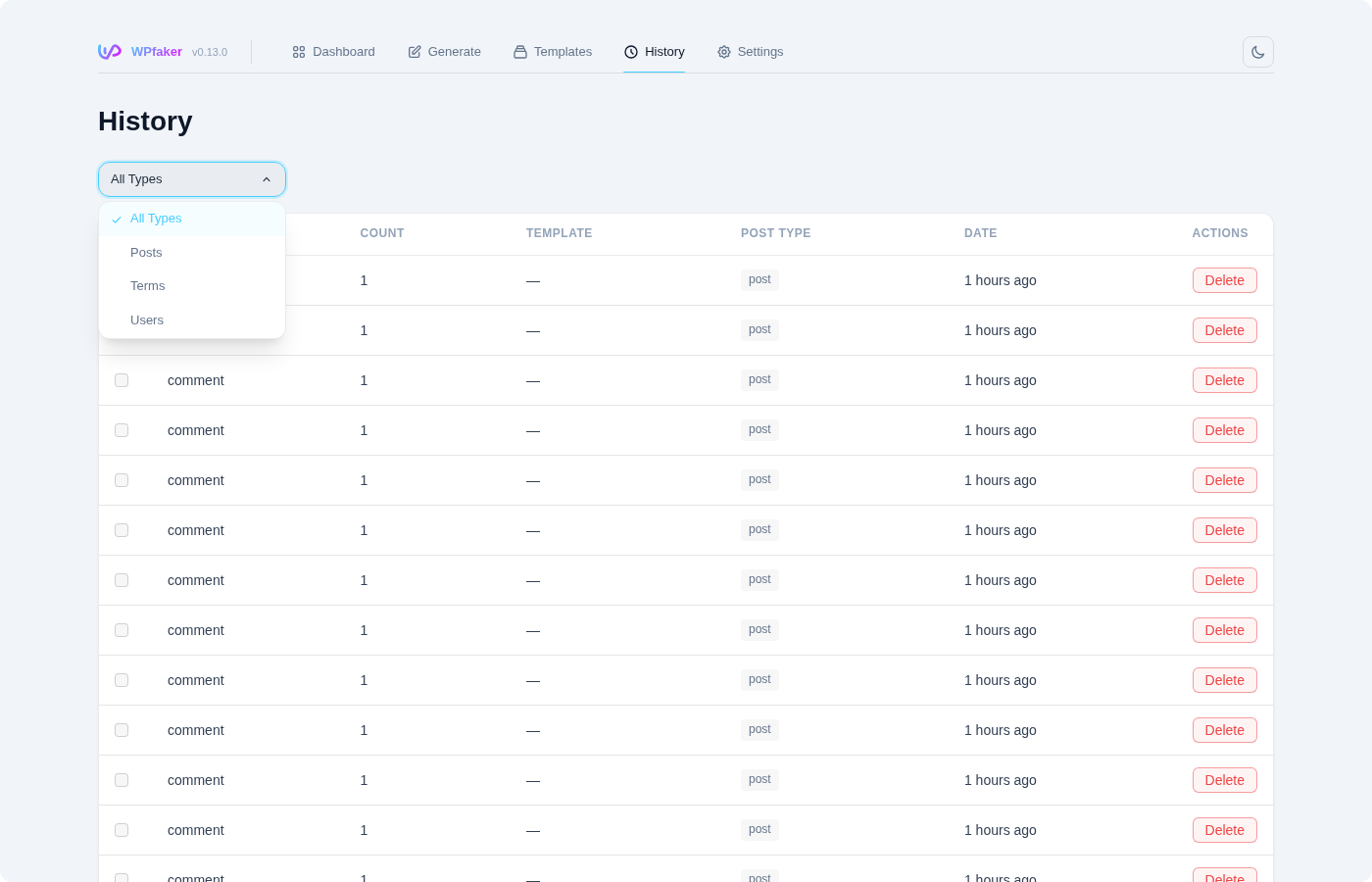
At the top of the History page, four tabs let you filter the displayed entries: All shows every tracked item regardless of type, Posts shows only generated posts across all post types, Terms shows only generated taxonomy terms, and Users shows only generated user accounts. Switching between tabs is instant and the counts beside each tab label tell you how many items exist in each category before you even click.
Entry Display
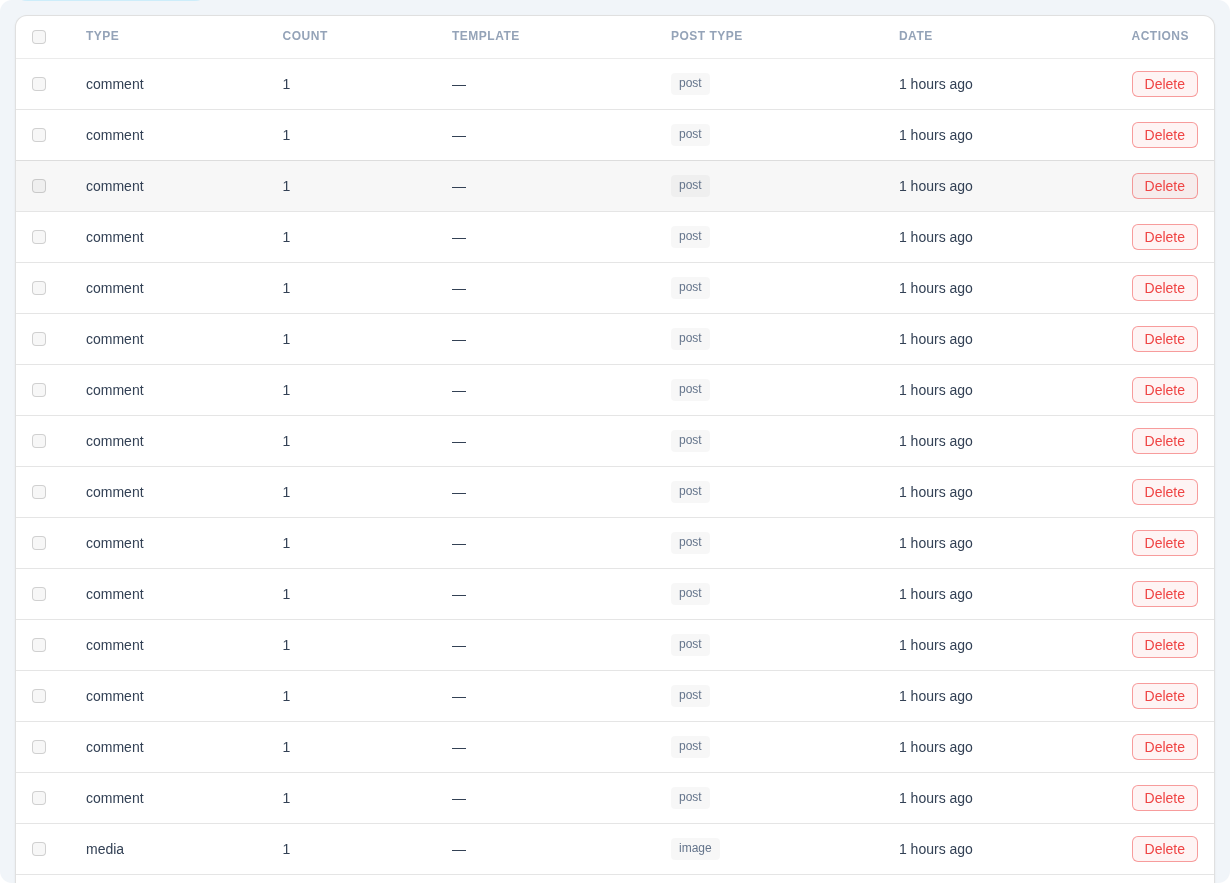
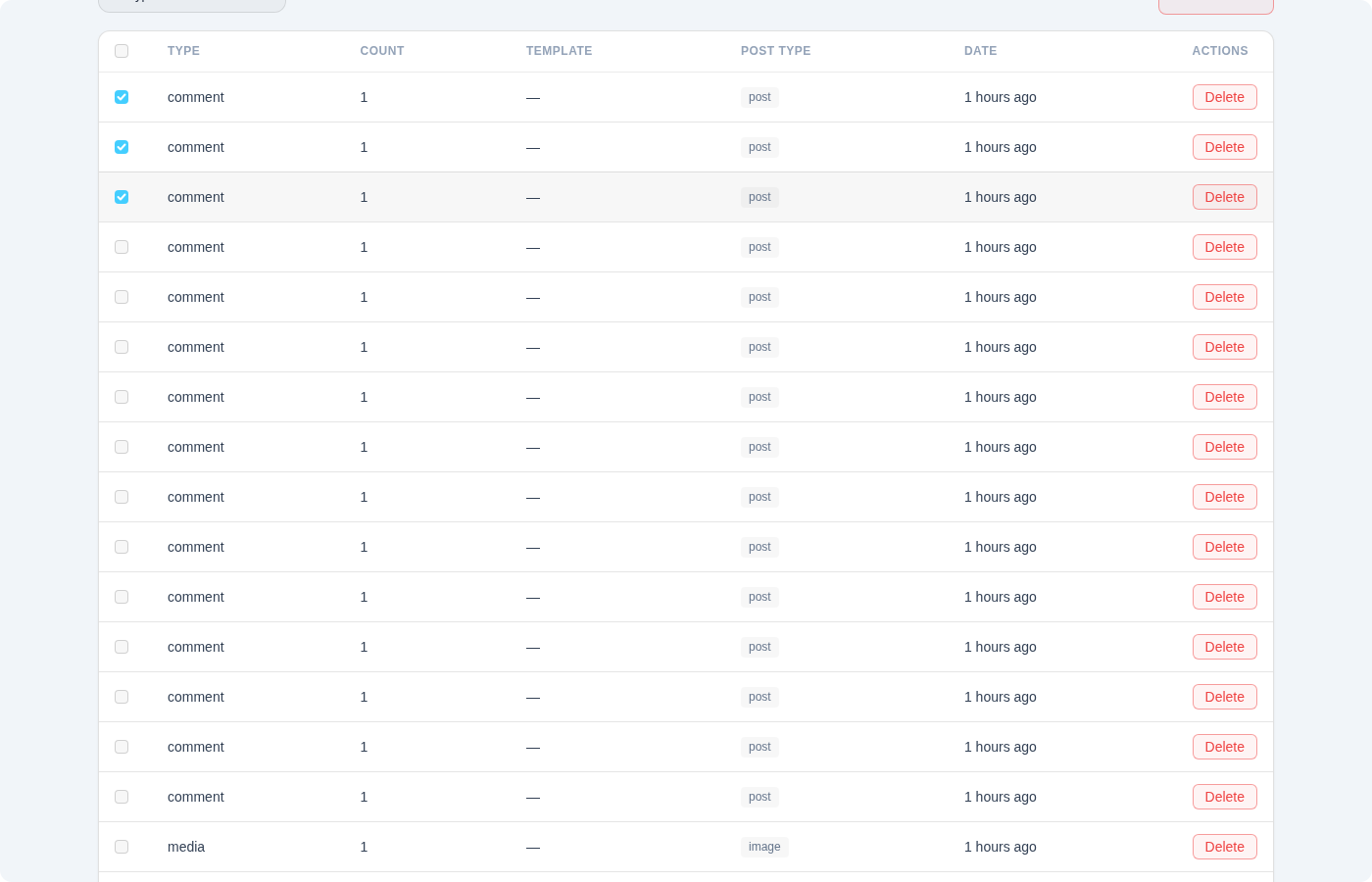
Each history entry displays a content type icon for visual identification, the item's title or name, the specific post type or taxonomy it belongs to (such as "post", "page", "product", or "category"), and a human-readable relative timestamp. Timestamps are shown in a friendly format — "just now", "5 min ago", "2 hours ago", "2 days ago" — rather than raw dates, making it easy to see your most recent activity at a glance. Each entry also includes action buttons for individual management.
Deleting Individual Entries
Every history entry has a delete action that lets you remove it from the tracking table. When you delete an individual entry, WPfaker gives you a choice: you can delete only the history record (removing it from tracking while leaving the actual WordPress content untouched), or you can delete both the history record and the actual WordPress content (the post, term, or user) in one operation.
This flexibility is important. Sometimes you want to stop tracking a particular item without actually removing it from WordPress — perhaps you generated a post that turned out to be useful and you want to keep it as real content. Other times, you want to fully clean up both the tracking data and the content itself.
WARNING
Deleting the actual WordPress content is permanent. Posts are moved to the Trash first (and can be recovered from there), but terms and users are deleted immediately with no Trash step.
Bulk Deletion
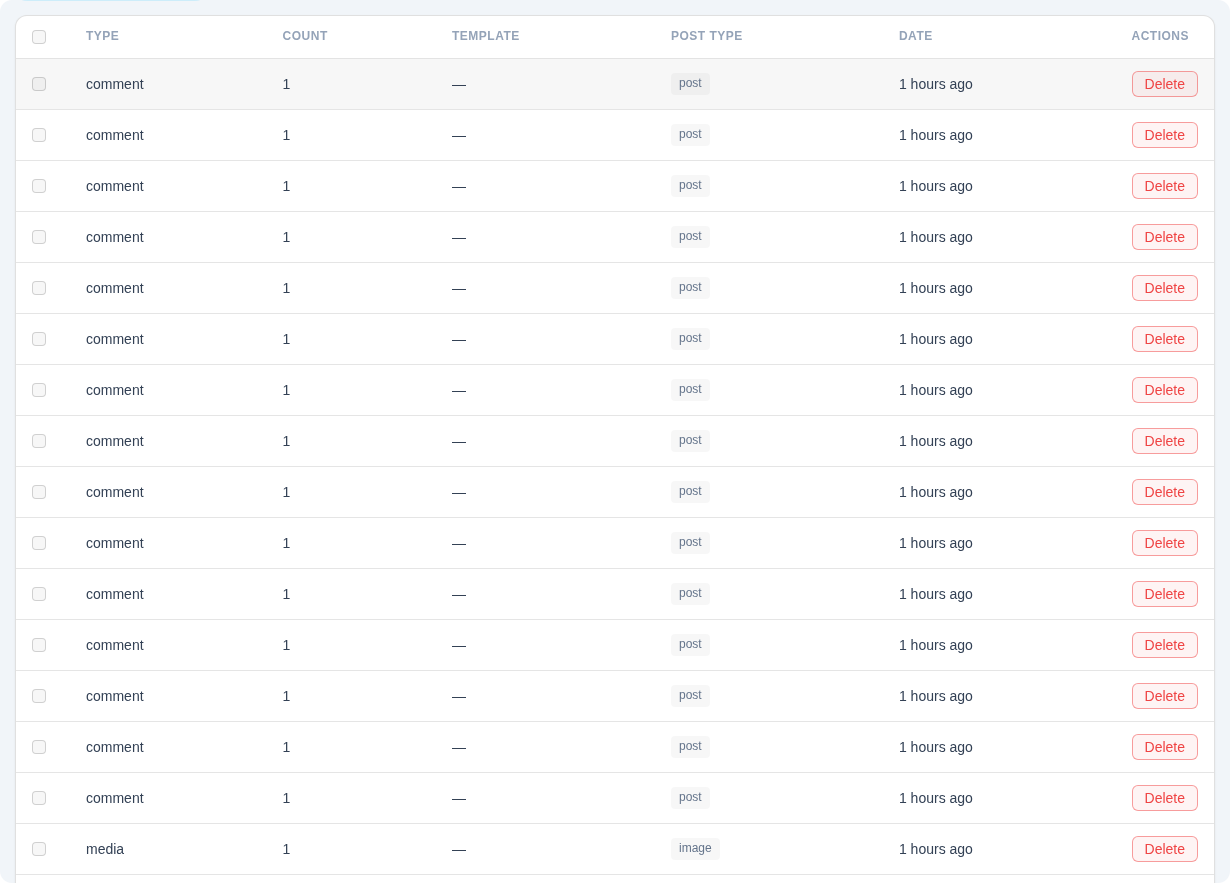
For larger cleanup operations, WPfaker supports selecting multiple history entries and deleting them together. You can check individual entries or use a select-all toggle to grab everything visible in the current filter. The same choice applies as with individual deletion: you can remove just the history records, or remove the history records along with all associated WordPress content.
Bulk deletion is especially useful after a testing session where you generated large amounts of content across multiple post types. Rather than deleting entries one by one, you can filter to a specific type, select all, and clean everything up in a single operation. For more on batch workflows, see Bulk Operations.
Related Content Cleanup
When you delete generated posts — whether individually or in bulk — WPfaker can optionally clean up related content that was created alongside those posts. This includes attached media files (featured images and gallery images that were downloaded during generation), generated taxonomy terms (categories, tags, and custom taxonomy terms that were auto-created), and generated user accounts (authors that were auto-created to provide varied authorship).
This cascading cleanup ensures that deleting your generated posts does not leave behind orphaned images clogging up your Media Library or phantom user accounts with no associated content. The defaults for which related content gets cleaned up can be configured in your Settings.
Orphan Cleanup
Over the life of a WordPress site, content can be deleted through many channels outside of WPfaker: the WordPress admin post list, bulk actions, other plugins, WP-CLI commands, or even direct database edits. When content that WPfaker generated gets deleted through one of these external channels, the history entry remains in WPfaker's tracking table, but the referenced content no longer exists. These are called orphan entries.
The Orphan Cleanup feature scans all history entries, checks whether the referenced WordPress content still exists, and removes any entries that point to content that has been deleted. Running orphan cleanup periodically keeps your history table accurate and your statistics correct.
TIP
WPfaker also hooks into WordPress's own deletion actions (before_delete_post, pre_delete_term, delete_user, delete_comment). When content is deleted through WordPress's standard mechanisms, WPfaker's HistoryService automatically detects the deletion and updates the history entry accordingly. Orphan cleanup is primarily needed for cases where content was removed through non-standard means, such as direct database queries.
Clear All History
The Clear All History action removes every record from the WPfaker history table. This is a tracking-only operation — it does not delete any actual WordPress content. Your posts, terms, and users remain exactly where they are. What changes is that WPfaker loses its record of which items it generated, meaning the Dashboard statistics will reset to zero, and you will no longer be able to use WPfaker's deletion features to target previously generated content.
Clear All History is useful when you want a fresh start with tracking — for example, after extensive testing when you want the history to reflect only future generation activity.
WARNING
After clearing history, WPfaker cannot identify which existing content it previously generated. If you later want to delete that content, you will need to do so manually through the WordPress admin.

Delete All WPfaker Data
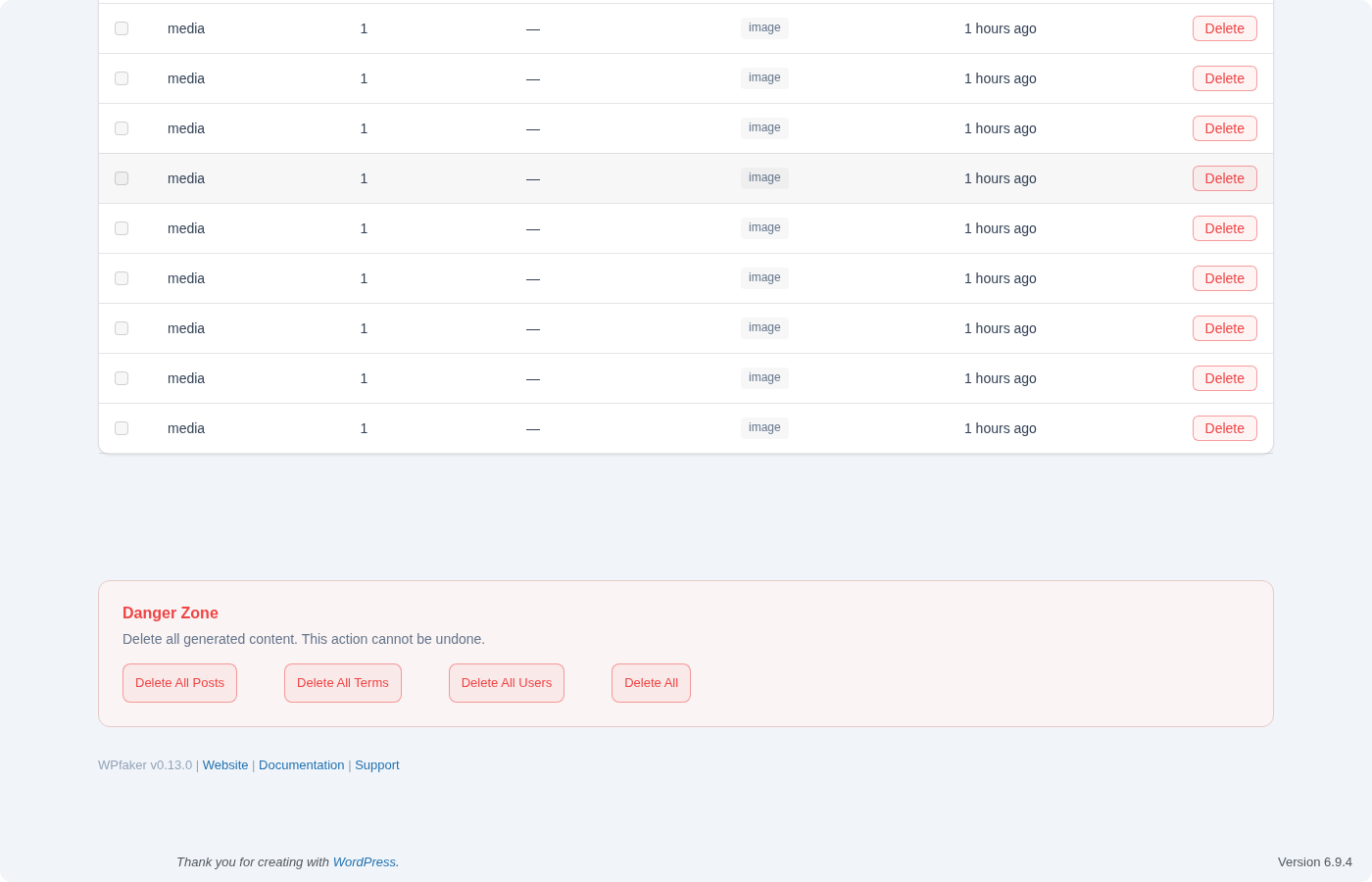
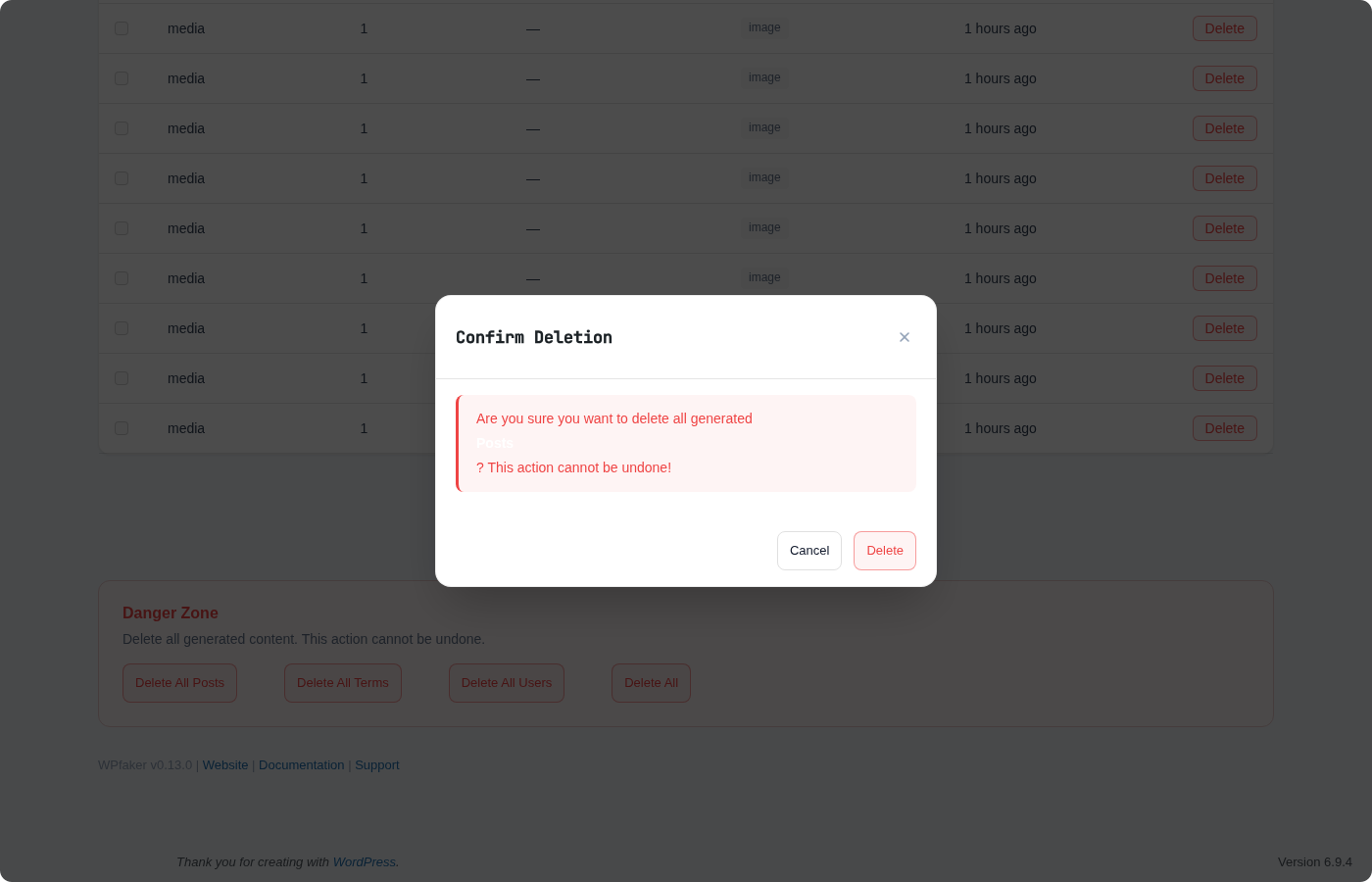
This is the most destructive action available in WPfaker, and it is intentionally placed behind confirmation dialogs to prevent accidental use. Delete All WPfaker Data removes everything that WPfaker has ever created: all generated posts (across every post type), all generated taxonomy terms, all generated user accounts, all downloaded media files, and the entire history table. When this operation completes, your WordPress installation will be as if WPfaker had never generated anything.
This operation is useful when you are completely done with test data and want to return your site to a clean state. It is also the fastest way to undo a large-scale generation run that produced undesirable results.
DANGER
This action is irreversible. All generated content is permanently deleted. There is no undo. Make absolutely sure you want to remove everything before confirming.
Statistics
The History system feeds directly into WPfaker's statistics, which are displayed on the Dashboard. Statistics include the total count of generated items broken down by type (posts, terms, users), counts by specific post type or taxonomy, and the time saved metric that estimates how much manual work WPfaker has replaced. These statistics are derived from the history table, so they are always consistent with what has been tracked.
API Access
The full history is available through WPfaker's REST API, making it possible to integrate history data into external tools, automation scripts, or CI/CD pipelines. You can query history entries filtered by type, retrieve statistics, trigger orphan cleanup, and clear history — all programmatically.
bash
# Fetch history entries (optionally filtered by type)
curl "https://yoursite.com/wp-json/wpfaker/v1/history?type=post&limit=50" \
  -H "X-WP-Nonce: your-nonce"

# Get generation statistics
curl "https://yoursite.com/wp-json/wpfaker/v1/history/stats" \
  -H "X-WP-Nonce: your-nonce"

# Get time saved metrics
curl "https://yoursite.com/wp-json/wpfaker/v1/history/time-saved" \
  -H "X-WP-Nonce: your-nonce"

# Run orphan cleanup
curl -X POST "https://yoursite.com/wp-json/wpfaker/v1/history/cleanup" \
  -H "X-WP-Nonce: your-nonce"

# Clear all history (tracking only, content remains)
curl -X DELETE "https://yoursite.com/wp-json/wpfaker/v1/history/clear" \
  -H "X-WP-Nonce: your-nonce"

# Delete ALL generated content + history
curl -X DELETE "https://yoursite.com/wp-json/wpfaker/v1/cleanup/all" \
  -H "X-WP-Nonce: your-nonce"
For complete API documentation, including request and response schemas, see the History API reference.
Auto-Cleanup Hooks
WPfaker does not rely solely on its own interface for tracking content lifecycle. It registers WordPress action hooks for before_delete_post, pre_delete_term, delete_user, and delete_comment. When any tracked content is deleted through WordPress's standard deletion mechanisms — whether from the admin post list, a bulk action, or another plugin — WPfaker's HistoryService automatically detects the event and marks the corresponding history entry accordingly. This means your history stays accurate even when content is managed outside of WPfaker.
Data Retention
History records are retained indefinitely by default. They persist across plugin deactivation and reactivation unless you have enabled the Delete History on Deactivation option in Settings. When that option is active, deactivating WPfaker drops the history table entirely — but even then, the generated WordPress content (posts, terms, users) is left untouched and must be cleaned up separately if desired.