
Appearance
Bulk Operations
WPfaker is built for generating content at scale. Whether you need a handful of posts for a quick layout check or hundreds of items to stress-test a theme, the plugin provides the tools to create and manage large volumes of test data efficiently. This page covers generation limits, batch strategies, API automation, and best practices for keeping your test environments clean.
Generation Limits
WPfaker calculates per-request limits dynamically based on your server's PHP memory_limit and max_execution_time. On a shared host with 128 MB RAM and a 30-second timeout, the limit might be 20 posts. On a VPS with 512 MB and 300 seconds, you could generate 150 or more. The calculated maximum ranges from 10 to 500 and is displayed on each Generate page.
User generation has a separate, lower limit because creating user accounts involves generating unique email addresses, secure passwords, and biographical data — operations that consume more memory per item than post creation.
You can view and override the detected limits in Settings > System & Performance.
INFO
These are per-request limits, not total limits. There is no cap on how many items WPfaker can generate overall. You can run as many generation requests as you need to reach your target dataset size.
Batch Strategy
When you need more content than a single request allows, the simplest approach is to run multiple generations back-to-back through the WPfaker UI. Each run adds to your existing content rather than replacing it (unless you explicitly enable the Delete & Generate option). For example, generating 500 blog posts is a matter of running the post generator five times with a count of 100.
The reason WPfaker enforces per-request limits rather than allowing arbitrarily large batches comes down to PHP's execution model. WordPress runs within PHP's request lifecycle, which means every generation request must complete within the configured max_execution_time (typically 30 to 300 seconds depending on your server). Each generated post involves multiple operations — creating the post record, assigning taxonomies, downloading and attaching a featured image, populating custom fields, and logging the item to history — and these operations add up quickly. Keeping batches at a reasonable size ensures that each request completes successfully rather than timing out halfway through and leaving you with partially generated data.
If generation requests time out on your server, reduce the batch size or increase your PHP limits. WPfaker will automatically recalculate the safe maximum. You can also override the detected limit in Settings.
Delete & Generate Workflow
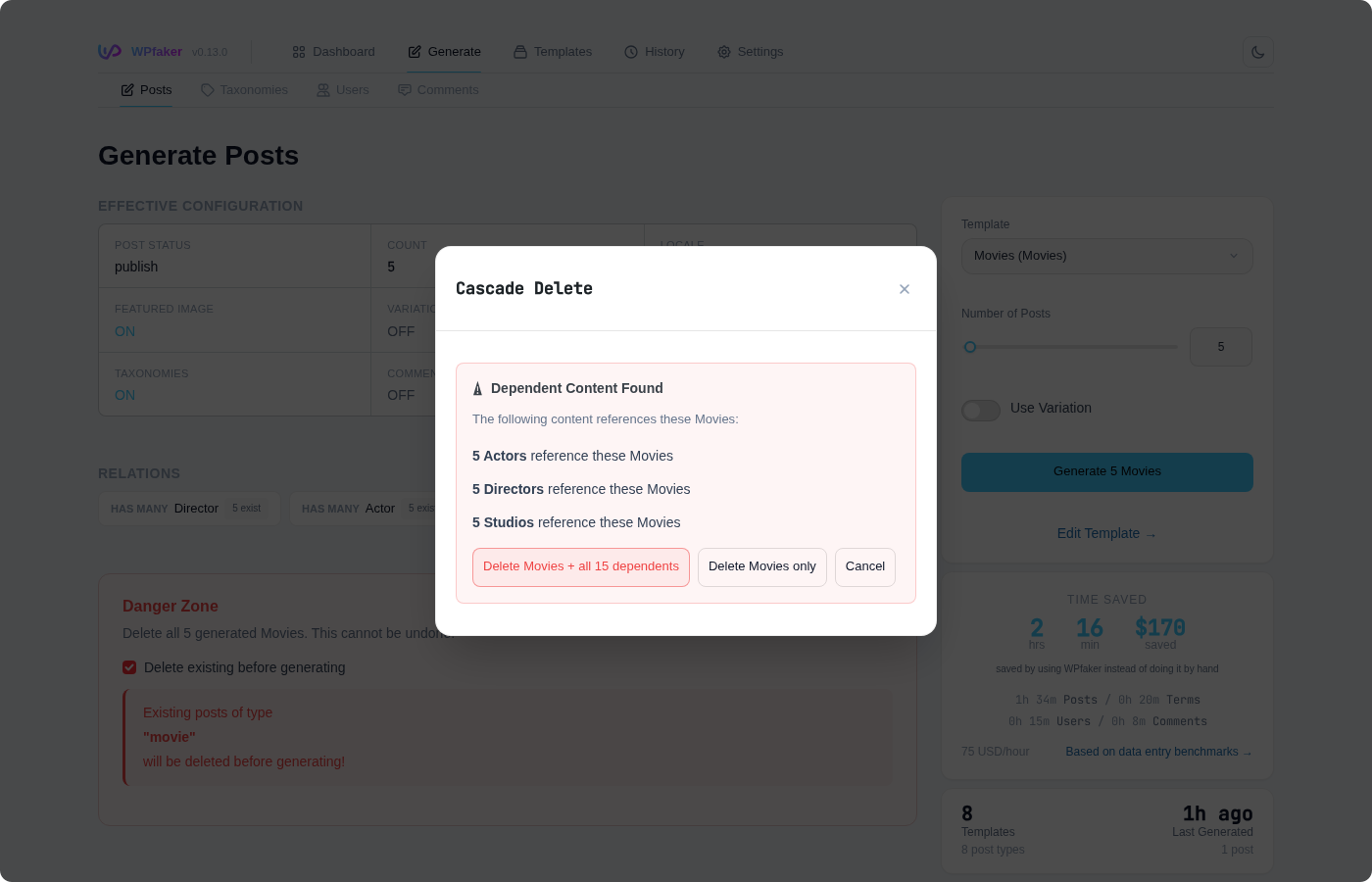
The most common bulk operation in WPfaker is the Delete & Generate workflow. This pattern deletes all existing WPfaker-generated content of a given type and then immediately generates a fresh batch, ensuring you start with clean test data every time. It is available directly in the Post Generation interface under the Danger Zone section.
When you enable Delete & Generate, WPfaker removes all posts of the selected post type that are tracked in the History system before creating new ones. You can configure whether related content should also be cleaned up: attached media files (featured images and gallery images), auto-created taxonomy terms, and auto-created user accounts can each be independently toggled on or off. The defaults for these toggles are configurable in your Settings.
This workflow is invaluable during active development. Instead of accumulating stale test data across multiple generation runs, you get a fresh, consistent dataset every time. It is especially useful before client demos, where you want polished, uniform test content rather than a mix of old and new generations with different configurations.
TIP
Delete & Generate only affects content tracked in WPfaker's history. Your manually created posts, terms, and users are never touched. This is one of the key reasons the history system exists — it allows WPfaker to surgically clean up its own content without affecting anything else in your WordPress database.
API Automation
For workflows that go beyond what the UI provides — such as generating very large datasets, integrating content generation into CI/CD pipelines, or scripting repeatable test environments — WPfaker's REST API provides full programmatic access to all generation and cleanup features.
Authentication
WPfaker's REST API requires WordPress authentication. You have two options: use an X-WP-Nonce header (suitable for scripts running in the context of a logged-in session) or use Application Passwords (introduced in WordPress 5.6, ideal for external scripts and automation tools). Application Passwords are the recommended approach for any automation that runs outside the browser.
Generating Large Datasets
The following bash script demonstrates how to generate 500 posts in batches of 50 using curl and Application Passwords. Each batch pauses briefly to give the server time to recover before the next request.
bash
#!/bin/bash
# Generate 500 posts in batches of 50

SITE_URL="https://yoursite.com"
USERNAME="admin"
APP_PASSWORD="xxxx xxxx xxxx xxxx xxxx xxxx"

for i in {1..10}; do
  echo "Batch $i of 10: generating 50 posts..."
  curl -s -X POST "$SITE_URL/wp-json/wpfaker/v1/generate/posts" \
    -u "$USERNAME:$APP_PASSWORD" \
    -H "Content-Type: application/json" \
    -d '{
      "post_type": "post",
      "count": 50,
      "post_status": "publish",
      "set_featured_image": true,
      "download_images": true,
      "image_provider": "picsum",
      "populate_custom_fields": true,
      "auto_taxonomies": true,
      "enable_variation": true,
      "variation_profile": "random"
    }'
  echo ""
  echo "Batch $i complete. Pausing 5 seconds..."
  sleep 5
done

echo "Done. 500 posts generated."
You can adapt this script for terms and users by changing the endpoint and payload:
bash
# Generate 200 taxonomy terms in batches of 100
for i in {1..2}; do
  curl -s -X POST "$SITE_URL/wp-json/wpfaker/v1/generate/terms" \
    -u "$USERNAME:$APP_PASSWORD" \
    -H "Content-Type: application/json" \
    -d '{
      "taxonomy": "category",
      "count": 100
    }'
  sleep 3
done

# Generate 50 users in a single request
curl -s -X POST "$SITE_URL/wp-json/wpfaker/v1/generate/users" \
  -u "$USERNAME:$APP_PASSWORD" \
  -H "Content-Type: application/json" \
  -d '{
    "count": 50,
    "role": "author"
  }'
For full endpoint documentation, including all available parameters, see the Generation API reference.
Template-Based Bulk Operations
When generating large batches of content, consistency matters. If you are populating a site with 200 custom post type items, you want every item to have the same set of custom fields filled in the same way. This is where Templates become essential for bulk workflows.
By saving a template that defines exactly how each field should be populated — which fields use Create mode, which use Choose mode with specific values, and which are left empty — you ensure that every item in your batch follows the same configuration. Apply the template before running your generation, and every post in the batch will be structurally consistent, even if the actual content varies thanks to Content Variation.
Templates are especially powerful when combined with API automation. You can reference a saved template by ID in your API requests, meaning your automation scripts produce the same field configuration every time without hardcoding field settings into the script itself.
Performance Considerations
Generating content is not a trivial operation. Each post that WPfaker creates involves a chain of actions: inserting the post record into the database, assigning taxonomy terms, downloading an image from an external provider and attaching it as the featured image, populating each custom field with appropriate fake data, and writing a history record. For a post type with a featured image and ten custom fields, a single post might involve 15 or more database writes and one external HTTP request.
The biggest performance bottleneck is almost always image downloads. When you use an external image provider like LoremFlickr, Unsplash, or Picsum, each post that receives a featured image requires an HTTP request to fetch the image, followed by a write to the local filesystem, and finally an insert into the WordPress Media Library. These external requests are subject to network latency and provider rate limits, which can slow generation significantly.
For this reason, when generating large batches with images enabled, it is best to keep batch sizes conservative — in the range of 10 to 20 posts per request. If you are generating content purely for structural testing (verifying layouts, custom field display, taxonomy archives) and do not need real images, disabling image downloads or switching to the Placeholder.com provider will dramatically speed up generation. Placeholder images are generated locally with no external HTTP requests, making them effectively instantaneous.
WARNING
External image providers like Unsplash and LoremFlickr may impose rate limits. If you are generating hundreds of posts with images, you may encounter 429 (Too Many Requests) responses. Use smaller batches with pauses between them, or switch to Picsum or Placeholder.com for bulk operations.
Server Configuration
If you control your server's PHP settings, increasing the execution time and memory limits will allow larger batches. WPfaker detects these values automatically, so after changing them the slider maximum on the Generate page adjusts accordingly.
php
// In php.ini or wp-config.php
max_execution_time = 300
memory_limit = 256M
After changing these values, click Recalculate in Settings > System & Performance to update the detected limits immediately.
Cleanup Strategy
Managing test data is just as important as generating it. Left unchecked, repeated generation runs can fill your database with hundreds or thousands of posts, terms, users, and media files that are no longer relevant. A disciplined cleanup strategy keeps your development environment lean and your testing predictable.
Use Delete & Generate for fresh starts. Whenever you begin a new round of testing, enable Delete & Generate to wipe the previous batch before creating new content. This prevents accumulation and ensures your test data reflects your current configuration.
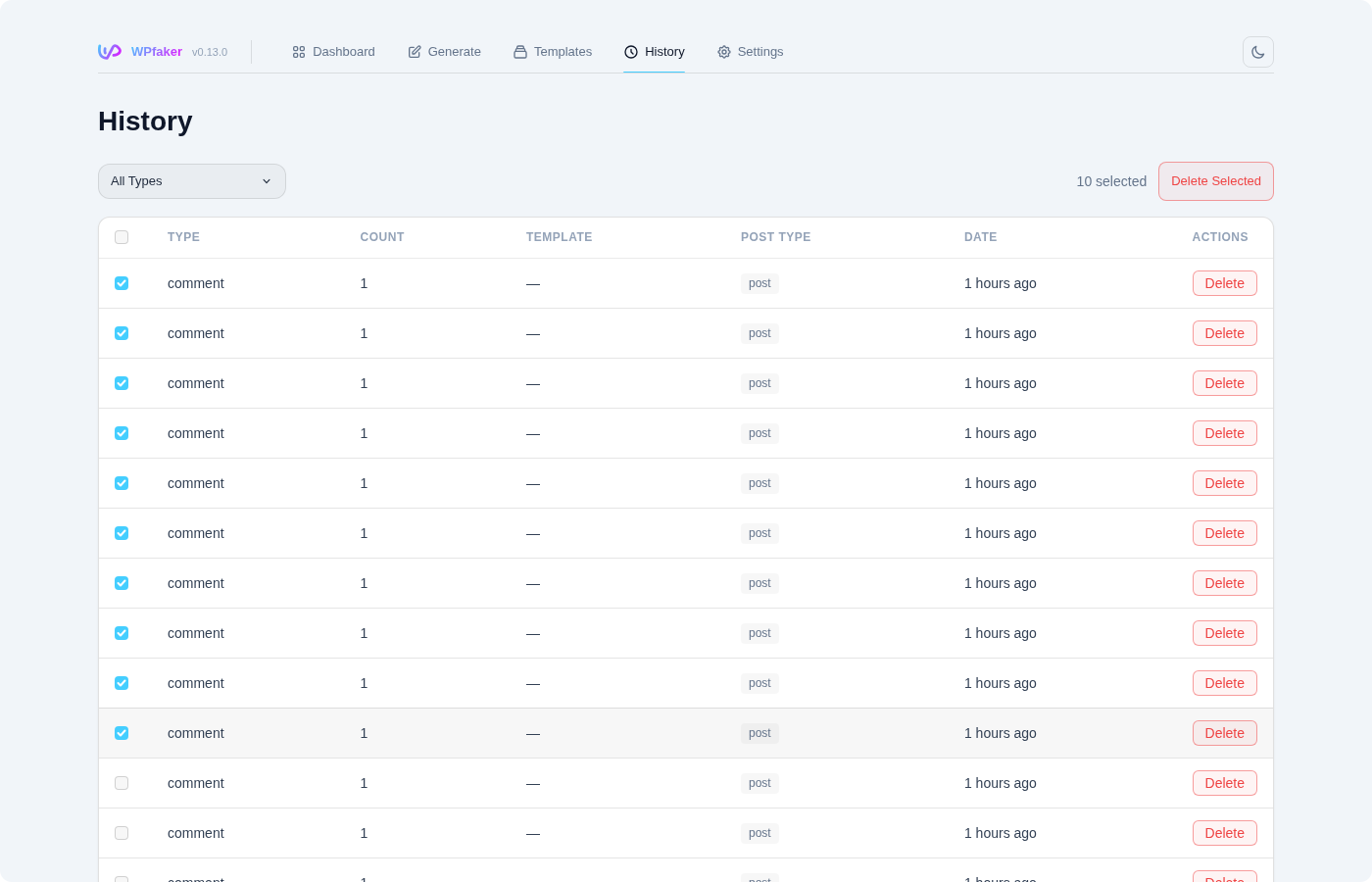
Run Orphan Cleanup periodically. If you or your team members delete WPfaker content through the WordPress admin or other tools, Orphan Cleanup will reconcile the history table with reality, removing tracking entries for content that no longer exists.
Clean up before demos and handoffs. Before showing a site to a client or handing off a project, use the Delete All WPfaker Data option to remove every trace of generated content. This returns the site to a clean state with only your manually crafted content remaining.
Schedule cleanups in automated environments. If you use WPfaker in a CI/CD pipeline or staging environment, include a cleanup step at the beginning of each run. A single API call to the cleanup endpoint ensures you always start fresh:
bash
# Clean slate before generating new test data
curl -X DELETE "$SITE_URL/wp-json/wpfaker/v1/cleanup/all" \
  -u "$USERNAME:$APP_PASSWORD"
WP-CLI Integration
WPfaker does not currently provide dedicated WP-CLI commands. However, because the REST API is fully featured, you can achieve the same automation using curl or any HTTP client from the command line. The bash scripts shown above work equally well in shell scripts, Makefiles, and CI/CD pipeline steps. If you prefer to work within the WP-CLI ecosystem, you can wrap the API calls in a custom WP-CLI command or use wp eval to call WPfaker's PHP classes directly — though the REST API approach is simpler and better supported.
INFO
WP-CLI command support is on the roadmap for a future WPfaker release. In the meantime, the REST API provides equivalent functionality for all automation use cases. See the API documentation for a complete reference.